

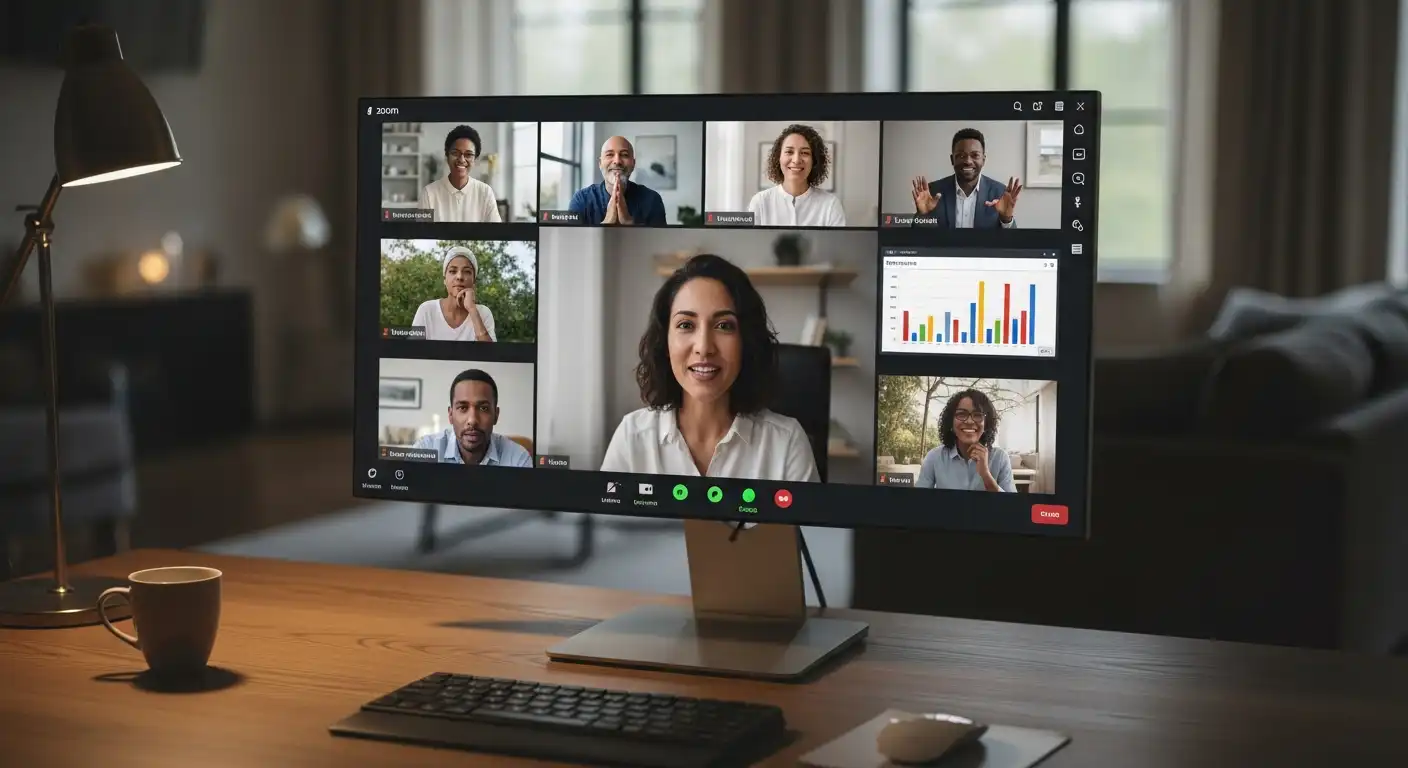
The modern workplace has undergone a seismic shift. The Zoom room has replaced the boardroom; the whiteboard is now digital; and the “over the shoulder” view of a colleague’s monitor has evolved into screen sharing. In this digital-first landscape, the ability to effectively share your screen and utilize collaboration tools is no longer just a “nice-to-have” technical skill—it is a core soft skill.
Ineffective screen sharing leads to delays with “Can you see my screen?” requests, privacy blunders, blurry text, and disengaged audiences. Conversely, mastering these tools can make you a more persuasive presenter, a more efficient team player, and a more dynamic leader.
This comprehensive guide will move you beyond the basics of hitting the “Share” button. It will explore the psychology, etiquette, technical optimization, and advanced strategies for using screen sharing and collaboration tools to drive productivity and connection.
The Psychology of Visual Collaboration
Before diving into the technicalities, it is crucial to understand why we share screens. Humans are visually dominant creatures. Research suggests that we process visual information 60,000 times faster than text. When you share your screen, you are not just showing data; you are guiding attention.
The “Shared Brain” Effect
When a team looks at the same document or visual simultaneously, it creates a phenomenon known as “shared attention.” This synchronizes the group’s cognitive processing. Instead of five people imagining five different versions of a project based on a verbal description, everyone is grounded in the same visual reality. This reduces ambiguity and accelerates decision-making.
The Trust Factor
Transparency builds trust. When you walk a client or colleague through your workflow live on a screen, rather than just sending a static PDF later, you are demonstrating competence and openness. However, this trust is fragile; a messy desktop or an embarrassing notification can erode professional credibility in seconds.
Choosing the Right Tool for the Job
Not all collaboration is created equal. Using the wrong tool can be like trying to hammer a nail with a screwdriver.
Synchronous Video Tools (Zoom, Teams, Google Meet)
These are your heavy lifters for live meetings.
- Best for: Presentations, live troubleshooting, and group discussions.
- Pro Tip: Learn the nuances of each. Zoom handles video optimization best, while Teams integrates deeply with Microsoft 365 files for co-editing.
Visual Collaboration Platforms (Miro, Mural, Lucidspark)
These are infinite digital whiteboards.
- Best for: Brainstorming, agile retrospectives, and mapping user flows.
- Key Feature: These tools allow “multi-player” mode, where everyone has a cursor and can edit simultaneously, rather than one person presenting while others watch.
Asynchronous Screen Sharing (Loom, Vidyard, Bubbles)
This is the future of productivity. Instead of calling a 30-minute meeting to explain a bug or a design update, you record a 3-minute video of your screen with a voiceover.
- Best for: Status updates, design feedback, and explaining complex code.
The Pre-Flight Checklist: Preparing Your Environment
The difference between an amateur and a pro is preparation. You should never hit “Share Screen” without a 10-second environment audit.
Digital Housekeeping and Hygiene
Nothing distracts an audience faster than a desktop cluttered with 50 random screenshots or a browser with 30 open tabs.
- The “Presentation” Browser Window: Create a dedicated browser window (not just a tab) that contains only the links and tools you need for the meeting.
- Clean the Desktop: If you must share your entire desktop, use a tool like “HiddenMe” (Mac) or simply hide desktop icons in Windows settings to present a clean slate.
The “Do Not Disturb” Mandate
This is non-negotiable. We have all seen the awkward text message from a spouse or the snarky Slack notification from a coworker pop up during a client presentation.
- System-Level: Enable “Do Not Disturb” or “Focus Mode” in your operating system (both Windows and macOS have this).
- App-Level: Snooze notifications on Slack, Teams, and email clients.
Resolution and Scaling
Most professionals work on high-resolution, wide-screen monitors. However, your audience might be watching on a 13-inch laptop or even a mobile phone.
- The Scaling Issue: If you share a 4K screen with a laptop user, your text will appear microscopic.
- The Fix: Lower your screen resolution to 1080p before the meeting, or use the “Zoom” function (Ctrl/Cmd +) in your browser to increase text size to at least 125% or 150%.
Etiquette and Execution: During the Share
Once you are live, your behavior should shift from “participant” to “broadcaster.”
Window vs. Entire Screen
This is the golden rule of privacy.
- Share Window: Always default to sharing a specific application window (e.g., just Chrome or just PowerPoint). This prevents the audience from seeing your taskbar, your clock, and any accidental pop-ups.
- Share Screen: Only share your entire desktop if you frequently need to switch between multiple applications (e.g., to show how data moves from Excel to your CRM).
The Art of the Cursor
Your mouse cursor is your laser pointer. Use it intentionally.
- Park It: When you are speaking for an extended period on a specific point, stop moving the mouse. Nervous mouse wiggling creates visual noise and anxiety for the viewer.
- Enlarge It: Both Windows and macOS let you increase the cursor size and change its color. A large, bright cursor helps viewers track your movement.
Narrate Your Navigation
Silence during screen sharing is confusing. If you are clicking through menus to find a setting, narrate what you are doing.
- Say: “I’m navigating to the settings tab on the top right, and selecting ‘privacy’…”
- Why: This helps people learn the software and keeps them engaged during repetitive tasks.
Advanced Collaboration Techniques
Screen sharing should not be a one-way street. The most effective sessions are interactive.
Annotation and Markup
Most video platforms (Zoom, Webex) have built-in annotation tools.
- Use the Pen: Circle key data points on a spreadsheet.
- Use the Stamp: Place a check mark next to items you agree to.
- Invite Others: Ask your audience to annotate. “Can everyone put a stamp on the design option they prefer?” This turns passive viewers into active participants.
Remote Control and Co-Browsing
If you are troubleshooting a colleague’s technical issue, stop trying to explain “Click the button on the left… no, the other left.”
- Give Control: Use the “Give Remote Control” feature. This allows you to drive their mouse on their screen. It saves time and frustration.
- Co-Browsing: For customer support or onboarding, co-browsing tools allow you to browse a website with the user, highlighting elements without taking over their computer.
The “Pause Share” Trick
Both Zoom and Teams allow you to “Pause Share.” This freezes the image on the audience’s screen.
- When to use it: Use this when you need to check your notes, find a password, or pull up a different document without the audience seeing your frantic searching. They see a frozen image; you see your messy backend.
Asynchronous Collaboration: The Loom Revolution
Synchronous meetings are expensive. They require simultaneous time from multiple people. Asynchronous screen sharing is the productivity hack of the decade.
When to Record Instead of Meet
Before booking a meeting, ask: “Does this require a two-way conversation?”
If the answer is no, record a screencast.
- Code Reviews: Walk through the logic of your code.
- Design Feedback: Point out specific pixel adjustments.
- How-To Guides: Create a library of SOPs (Standard Operating Procedures) by recording your screen as you do a task.
Best Practices for Asynchronous Video
- Keep it Short: Aim for under 5 minutes. If it’s longer, people won’t watch it.
- Playback Speed: Encourage your team to watch videos at 1.5x speed.
- Call to Action: End the video with a specific question or next step to clarify expectations for the viewer.
Technical Troubleshooting
Technology fails. Being the person who knows how to fix it makes you invaluable.
The “Black Screen” Issue
Sometimes you share, and the audience sees black.
- The Cause: Usually a graphics driver conflict or hardware acceleration issue.
- The Fix: Instruct the user to turn off “Hardware Acceleration” in their browser or app settings.
Permissions Loop (macOS)
Apple has strict security. If you update your OS, you might lose screen recording permissions.
- The Fix: Go to System Preferences > Security & Privacy > Screen Recording. Ensure your browser and meeting app are up to date. Note: You will have to restart the app for this to take effect, so check this before the meeting starts.
Bandwidth Bottlenecks
If your screen share is pixelated or lagging:
- Turn off your Camera: Video consumes bandwidth. Audio + Screen Share uses less data than Audio + Screen Share + Face Video.
- Close Background Apps: Dropbox, Spotify, or Steam might be downloading updates in the background.
Security and Privacy in Collaboration
Screen sharing is a common vector for data leaks.
The “Auto-Fill” Danger
We rely on browser autofill for passwords and credit card numbers. When sharing your browser, be very careful when entering login credentials
- Pro Tip: Use a password manager that copies the password to your clipboard so you can paste it (hidden) rather than typing it (visible).
PII (Personally Identifiable Information)
If you work in HR, finance, or healthcare, accidentally flashing a spreadsheet with client data is a compliance violation.
- Blur Tools: Browser extensions can blur sensitive text on a webpage with a single click before you share.
Mobile Screen Sharing
Increasingly, we work from phones and tablets. Sharing a mobile screen is different.
Notifications are Deadly
On mobile, push notifications drop down from the top, covering the content. These are often personal (WhatsApp, Tinder, Bank alerts).
- Do Not Disturb: This is critical on mobile. Ensure it is set to “Total Silence.”
Orientation Matters
If you are sharing a mobile app, keep the phone vertical. If you are sharing a video or document, rotate the phone to landscape to fill the viewer’s desktop screen.
Future Trends: Immersive Collaboration
The tools are evolving rapidly. We are moving toward Immersive Sharing.
- Presenter Mode: Tools like Zoom and Mmhmm let you superimpose your video cutout on your slide deck, like a weatherman. This keeps the human connection alive while presenting data.
- VR/AR Collaboration: In the near future, we won’t just share 2D screens; we will step into 3D rooms to manipulate objects together.
Conclusion
Mastering screen sharing and collaboration tools is about respect. It is about respecting your colleagues’ time by being efficient. It is about respecting their cognitive load by being clear. It is about respecting your privacy and theirs by ensuring security.
The next time you click that green “Share Screen” button, remember: you are not just broadcasting pixels. You are curating an experience. By following the preparation checklists, utilizing the right tools, and engaging in active collaboration, you transform a mundane meeting into a dynamic, productive session.
Stop asking, “Can you see my screen?” and start commanding the room.