

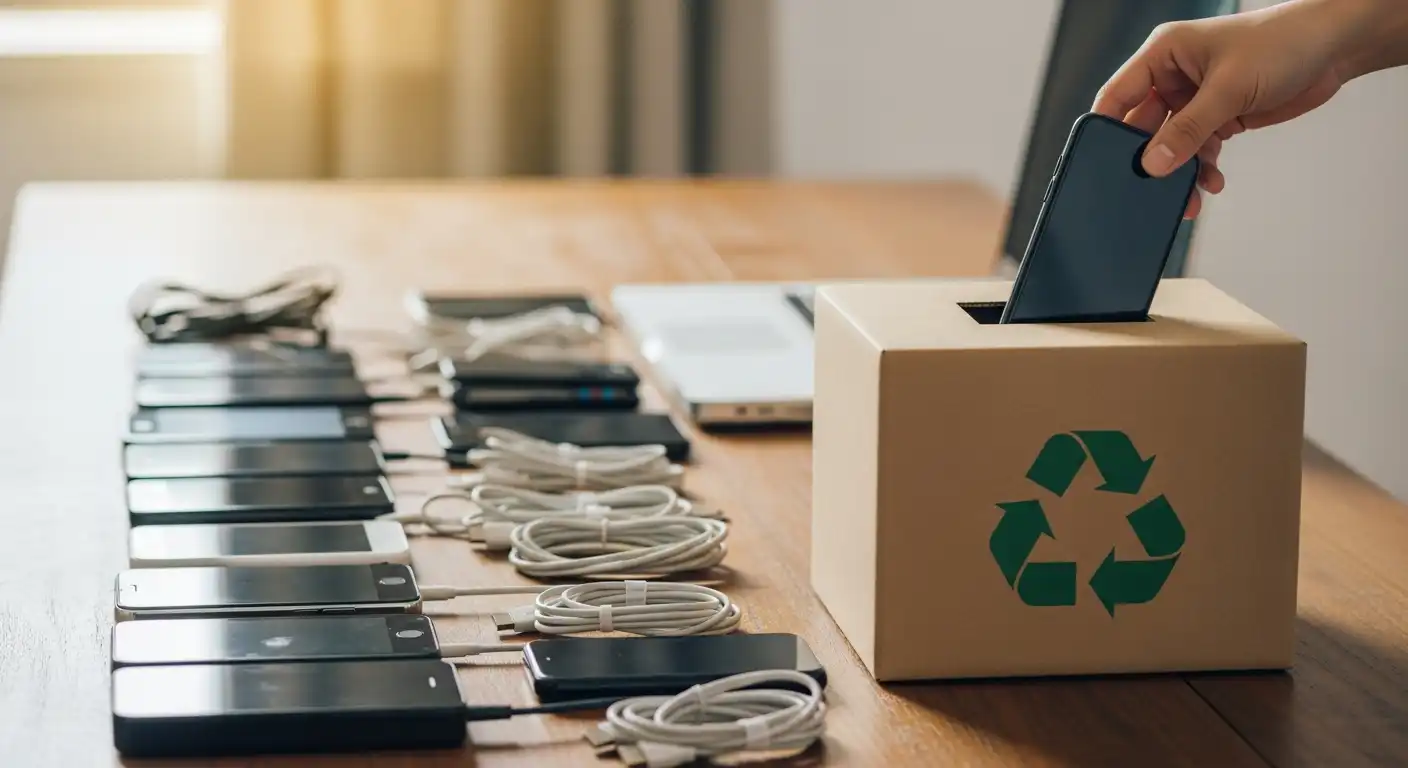
We all have that drawer. You know the one—the “graveyard of gadgets.” It is a tangled mess of obsolete charging cables, a cracked iPhone 6, a laptop that hasn’t turned on since 2017, and a digital camera that uses batteries you can’t even buy anymore.
We hold onto these devices not because we cherish them, but because we are paralyzed by two fears: the fear of polluting the environment and the fear of our personal data falling into the wrong hands.
This paralysis is contributing to a massive global problem. According to the United Nations, the world generates over 50 million metric tons of e-waste (electronic waste) every year, which weighs more than all commercial airliners ever built. Only a fraction of this is properly recycled. The rest ends up in landfills, leaching toxins into the soil, or is shipped to developing nations, where it is processed under unsafe conditions.
Simultaneously, cybercrime is at an all-time high. That old laptop in your closet isn’t just a paperweight; it is a vault containing your tax returns, passwords, family photos, and browsing history. Simply throwing it away is a security nightmare waiting to happen.
The good news is that clearing out your tech clutter can be safe, environmentally responsible, and even profitable. This comprehensive guide will walk you through the entire lifecycle of electronic disposal, from the “digital scrub” to the final drop-off.
The Pre-Disposal Phase: Backing Up and Inventory
Before considering destruction or donation, ensure you are not losing anything irreplaceable. The first step is organization.
Taking Inventory of Your Digital Life
Pull everything out of the “drawer of doom.” Sort your devices into three piles:
- High-Value Tech: Recent smartphones (last 3-4 years), working laptops, tablets. These can be sold.
- Functional but Old: Working devices that have no resale value but could be useful to someone in need. These are for donation.
- The Brick Pile: Broken screens, fried motherboards, ancient printers, and tangled cables. These are for recycling.
The 3-2-1 Backup Rule
For the devices that still power on, you need to extract your data. Do not rely on a single copy of your precious photos or documents. Follow the 3-2-1 rule:
- 3 copies of your data.
- 2 different media types (e.g., your computer’s drive and an external hard drive).
- 1 copy off-site (cloud storage).
For smartphones, ensure your iCloud (iOS) or Google Drive (Android) backups are up to date. For computers, use Time Machine (Mac) or File History (Windows) to back up to an external drive while also syncing critical folders to a cloud service such as Dropbox or OneDrive.
The Security Scrub: Why “Delete” Is Not Enough
This is the most critical section of this guide. Many people believe that dragging files to the “Recycle Bin” and clicking “Empty” deletes the data. It does not.
When you delete a file, the computer simply removes the reference to that file in the directory. It’s like removing a card from a library catalog; the book is still on the shelf. The data remains on the hard drive until new data eventually overwrites it. A savvy hacker with free software can recover “deleted” files in minutes.
To truly protect yourself, you must wipe or sanitize the drive.
How to Wipe a Smartphone or Tablet
Mobile devices are generally easier to secure than computers because modern operating systems encrypt data by default. When you perform a factory reset, you are effectively erasing the encryption key, rendering the data on the chip unreadable.
For iPhone (iOS):
- Unpair Devices: Unpair your Apple Watch.
- Sign Out: Go to Settings > [Your Name] > Sign Out. This removes the device from your iCloud and turns off “Find My iPhone” (Activation Lock).
- The Wipe: Go to Settings > General > Transfer or Reset iPhone > Erase All Content and Settings.
For Android:
- Remove Accounts: Go to Settings > Accounts. Remove your Google account. This is crucial to disable “Factory Reset Protection” (FRP), which would otherwise lock the next user out of the device.
- The Wipe: Go to Settings > System > Reset Options > Erase all data (factory reset).
- Encryption Check: If you have a very old Android device (pre-2015), verify your security settings to ensure the device is encrypted before resetting it.
The SIM and SD Card Trap:
Never forget the physical storage. Always remove the SIM card (which holds your phone number and contacts) and any microSD cards. If you aren’t using the SD card in a new device, snap it into the slot.
How to Wipe a Computer (Windows and Mac)
Computers require more effort, especially when using older mechanical Hard Disk Drives (HDDs).
For Windows PCs:
Windows 10 and 11 have built-in tools that make this easier.
- Go to Settings > Update & Security > Recovery.
- Under “Reset this PC,” click “Get Started.”
- Select “Remove Everything.”
- Crucial Step: Click “Change settings” and turn on “Data Erasure” or “Clean the drive.” This will take hours, but it overwrites the space with zeros, making data recovery impossible.
For Macs:
- Intel Macs (older): Restart the computer and press and hold Command + R to enter Recovery Mode. Open Disk Utility, select your hard drive, click “Erase,” then select “Security Options.” Move the slider to the right to overwrite the data multiple times (3 passes is the standard).
- Apple Silicon (M1/M2/M3) and T2 Chips: These Macs are always encrypted. Simply go to System Settings > General > Transfer or Reset > Erase All Content and Settings. It works instantly, similar to an iPhone.
The Nuclear Option: Physical Destruction
If a computer won’t turn on, you cannot run a software wipe. In this case, you must physically destroy the drive.
- Remove the Hard Drive: Unscrew the laptop or tower casing and locate the drive.
- Drill It: Use a power drill to drill four or five holes through the drive platters.
- Hammer It: If you don’t have a drill, hammering the drive until the casing is bent and the internal platters are shattered is effective.
Note: Do not do this to a battery! Puncturing a lithium-ion battery can cause an explosion.
To Sell, Donate, or Recycle?
Once your device is clean, you need to decide where to place it. This decision should be based on the device’s age and condition.
Option 1: Selling (Monetizing Your E-Waste)
If your device is less than four years old and in good condition, it has value.
- Buy-Back Programs: Sites like Gazelle, Decluttr, and It’s Worth More offer a hassle-free experience. You quote the condition, they send a shipping label, and you get paid. You won’t get top dollar, but it is safe and easy.
- Peer-to-Peer: Swappa and eBay will get you the most money, but they require more work (taking photos, handling shipping, and potential disputes).
- Trade-In: If you are buying a new device, trade-in programs from Apple, Samsung, or Best Buy are excellent. Even if the device has zero value, they will take it off your hands for free recycling.
Option 2: Donating (Bridging the Digital Divide)
The digital divide is real. Students, job seekers, and the elderly often lack access to the internet.
- Dell Reconnect (Goodwill): A partnership between Dell and Goodwill allows you to drop off any brand of computer equipment at Goodwill locations. They refurbish what they can and recycle the rest.
- Secure the Call: This non-profit takes old smartphones (even without a service plan) and turns them into 911-only emergency phones for victims of domestic violence and senior citizens.
- Computers with Causes: They accept laptops, tablets, and gadgets to support educational programs and foster homes.
Tax Tip: Always ask for a receipt when donating. You can often deduct the fair market value of the item on your taxes.
Option 3: Recycling (The Last Resort)
If the device is broken, obsolete, or simply “junk,” it must be recycled. Never throw electronics in your household trash or recycling bin.
Electronics contain heavy metals like lead, mercury, and cadmium. In a landfill, these toxins seep into the groundwater. Conversely, they also contain precious metals like gold, silver, copper, and palladium. Recycling recovers these materials, reducing the need for destructive mining operations.
How to Find a Reputable Recycler:
Not all recyclers are created equal. Some unscrupulous operators simply ship e-waste to developing nations where it is burned in open pits to extract copper, poisoning local workers.
You must look for Certified E-Waste Recyclers. Look for two specific certifications:
- E-Stewards: The gold standard. These recyclers adhere to the strictest global standards, ensuring no toxic waste is exported to developing nations and safe working conditions for workers.
- R2 (Responsible Recycling): Another highly respected standard that ensures data destruction and environmental compliance.
Where to Drop Off:
- Big Box Retailers: Best Buy and Staples have comprehensive recycling programs in the US. You can walk into almost any store and drop off cables, computers, and printers for free.
- Municipal Centers: Check your local city or county website. Most waste management departments have a designated “Household Hazardous Waste” facility that accepts electronics.
- Call2Recycle: Use their website to find drop-off locations specifically for rechargeable batteries and cell phones.
Handling the Tricky Stuff: Batteries, Cables, and Ink
Not everything is a laptop or a phone. Here is how to handle the miscellaneous drawer debris.
Lithium-Ion Batteries
These are the most dangerous items in your house. If a lithium battery is crushed in a garbage truck, it can ignite a massive fire.
- Swollen Batteries: If a battery is puffy or swollen, it is a fire hazard. Do not ship it. Do not drop it in a bin. Contact your local hazardous waste center immediately for specific instructions.
- Normal Disposal: Tape over the contact points (the metal ends) with clear tape or electrical tape to prevent short-circuiting, then take them to a battery drop-off (Home Depot, Lowe’s, and Best Buy often have these).
Cables and Chargers
Cables are packed with copper, which is highly recyclable and valuable.
- Best Buy has dedicated kiosks for cables.
- Scrap Metal Yards: If you have a massive box of cables (10lbs+), a local scrap metal yard might actually pay you for them.
Printer Ink and Toner
Ink cartridges are a nightmare for landfills.
- Office Supply Stores: Office Depot and Staples typically offer store rewards ($2 per cartridge) for recycling ink cartridges.
- Mail-Back: Most major brands (HP, Epson, Canon) include a pre-paid envelope in the box with new cartridges so you can mail back the old ones.
The Psychology of Letting Go: Avoiding Future E-Waste
Part of safely disposing of electronics is changing how we acquire them. We need to move from a linear economy (buy, use, trash) to a circular economy (buy, use, repair, recycle).
The Right to Repair
Support companies that make devices easier to fix. Framework (laptops) and Fairphone (smartphones) design modular devices, allowing you to upgrade the camera or battery without replacing the whole phone. Even Apple and Samsung have recently launched self-repair programs in response to “Right to Repair” legislation.
Buy Refurbished
Buying a “Certified Refurbished” device extends the product’s life and saves you money. It sends a market signal that consumers value longevity over novelty.
One-In, One-Out Rule
Adopt a minimalist policy. If you buy a new pair of headphones, the old pair must be sold, donated, or recycled immediately. Do not let it enter the “drawer of doom.” The longer a device sits in a drawer, the more value it loses and the harder the battery becomes to recycle.
The “Data Destruction” Checklist
Before you hand over your device, run through this final checklist to ensure you are safe.
- Backup Verified: Have you opened your backup on a different device to confirm the files are present?
- Accounts Logged Out: Have you signed out of iCloud, Google, Microsoft, and social media apps?
- Browsers Cleared: Did you clear the saved passwords and autofill data from the web browsers?
- 2FA Transferred: Did you move your Google Authenticator or other 2FA codes to your new device? (This is a common nightmare—wiping a phone that holds the keys to your other accounts).
- External Media Removed: Are the SIM card, SD card, and any discs (CD/DVD) removed?
- Factory Reset Complete: Did you see the “Welcome” or “Hello” screen that indicates the device has been reset?
Conclusion
Safely disposing of old electronics is a responsibility we all share in the digital age. It requires a little more effort than tossing a soda can in a recycling bin, but the stakes are significantly higher.
By taking the time to wipe your data properly, you protect your identity and financial future. By taking the time to find a certified recycler, you protect the planet from toxic chemicals and conserve valuable resources for the next generation of technology.
Clear out that drawer today. You will feel lighter and safer, and you might even make a little cash in the process. Your data belongs to you; let’s keep it that way.