

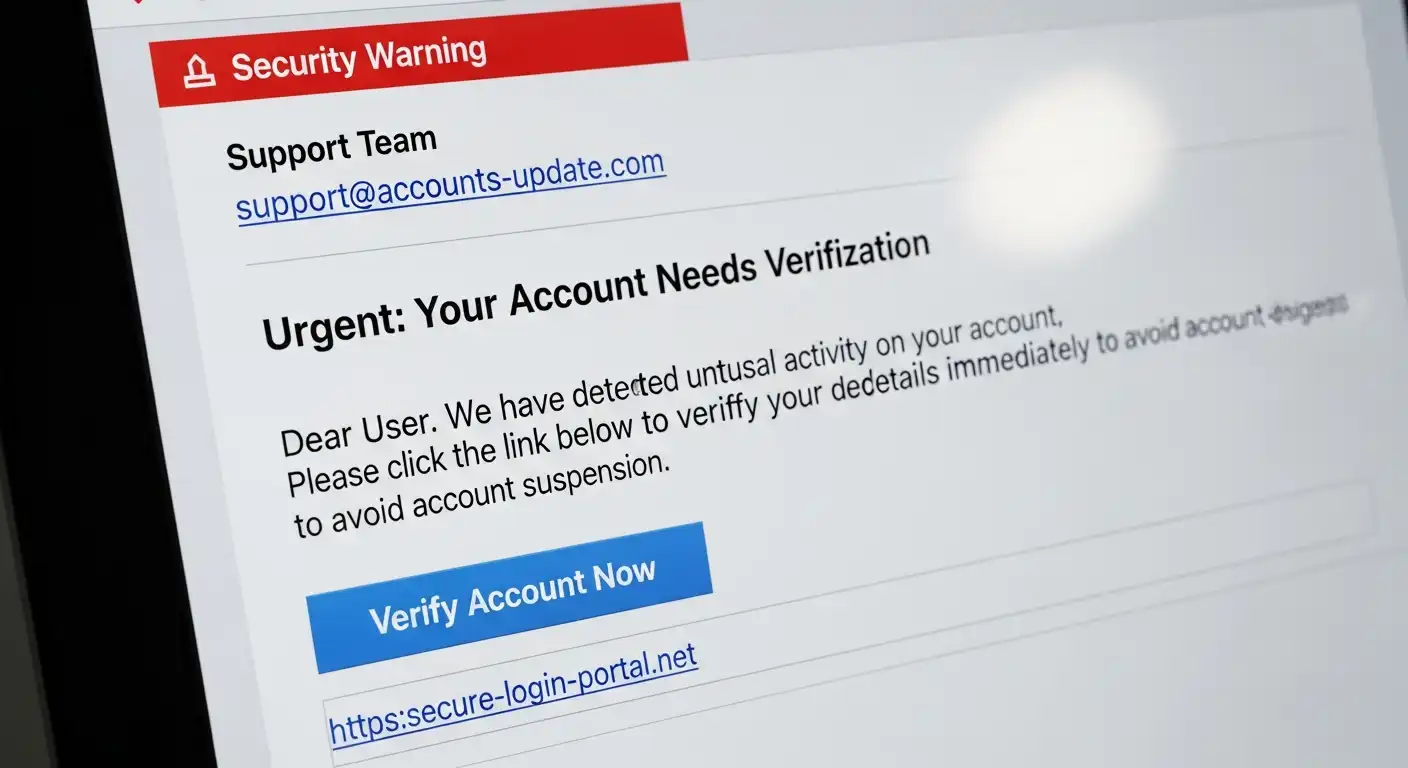
It starts with a simple “ping.” You glance at your phone or your monitor. A notification slides in. It looks like an email from Netflix saying your payment failed. Or perhaps it’s a message from your CEO asking for a “quick favor.” Or maybe it’s a shipping notification from Amazon for a package you don’t remember ordering.
Your pulse quickens slightly. You are busy. You want to fix the problem—your thumb hovers over the link.
Stop.
In that split second, you are standing on the precipice of a cybersecurity disaster. That email is likely a phishing attempt—a digital lure designed to steal your passwords, your identity, or your company’s data.
Phishing remains the number one vector for cyberattacks globally. According to cybersecurity research, over 90% of all data breaches begin with a single phishing email. The attackers are banking on one thing: your distraction. They know you are overworked, tired, and clicking through your inbox on autopilot.
The good news is that you don’t need to be an IT forensic analyst to protect yourself. Most phishing emails, despite becoming increasingly sophisticated, still share the same DNA. They have “tells”—subtle mistakes and psychological triggers that give them away.
You can train your brain to recognize these tells in a heartbeat. This guide will teach you the 10-Second Scan, a mental checklist that helps you spot a fake email before you click.
The Psychology of the Scam: Why We Click
Before we dive into the visual clues, it is crucial to understand the weapon being used against you. Phishing is not a technical hack; it is a “social engineering” hack. It targets human psychology, not computer code.
Scammers rely on two primary emotional triggers: Fear and Urgency.
When you read a subject line like “URGENT: Bank Account Suspended,” your brain’s amygdala (the fear center) activates. This triggers a “fight or flight” response, which temporarily bypasses your prefrontal cortex—the part of your brain responsible for logical, critical thinking. The scammer wants you to act fast and think later.
By adopting the 10-Second Scan, you are forcing your brain to slow down just enough for logic to kick back in.
Second 1-3: The “From” Address (The Imposter)
The very first place your eyes should dart is the sender’s address. This is where 50% of phishing scams fall apart immediately.
Most email clients (such as Outlook, Gmail, or Apple Mail) display the “Friendly Name” prominently while hiding the actual email address. A scammer can easily change their Friendly Name to “Apple Support” or “Your Boss.”
The Mismatch Test
Hover your mouse over the sender’s name (or tap the dropdown arrow on mobile) to reveal the actual email address.
- The Look: It says “PayPal Support.”
- The Reality: The address is paypal-support@gmail.com or service@paypa1-update.com.
Legitimate organizations send emails from their own domains. PayPal will only email you from @paypal.com. They will never use a public domain email address such as @gmail.com, @yahoo.com, or @outlook.com.
The Typosquatting Trick
Sophisticated attackers use “typosquatting”—buying domains that closely resemble the real thing.
- Real: microsoft.com
- Fake: microsoft.com (missing ‘r’)
- Fake: rnicrosoft.com (the ‘r’ and ‘n’ look like an ‘m’)
- Fake: netflix-billing-update.com (a long, hyphenated mess)
If the domain name looks overly complex, has misspellings, or adds random words like “secure,” “update,” or “login” to the brand name, delete it.
Second 4-5: The Subject Line (The Hook)
Once you’ve cleared the sender, glance at the subject line. This is the hook designed to reel you in. Phishing subject lines almost always fall into one of three categories:
- The Panic Inducer: “Final Notice,” “Account Suspended,” “Unauthorized Login Attempt,” “IRS Audit.”
- The Curiosity Gap: “You have a new voice message,” “Delivery Attempt Failed,” “Invoice #39284 Attached.”
- The Carrot: “Claim your refund,” “You have won,” “Employee Bonus.”
The Urgency Check
Ask yourself: Is this email trying to make me panic?
Legitimate companies rarely use hyper-aggressive language in subject lines. Your bank will not email you in all caps screaming “IMMEDIATE ACTION REQUIRED.” If the subject line makes your heart rate jump, treat it as a threat.
Second 6-7: The Greeting and Tone (The Robot)
Now, scan the first line of the email.
The Generic Greeting
For mass phishing campaigns (spray-and-pray attacks), hackers don’t know your name. They only have your email address. Therefore, they rely on generic greetings:
- “Dear Customer,”
- “Dear User,”
- “Dear [Your Email Address],”
- “Greetings,”
If you do business with a company—say, your bank or Amazon—they know your name. They will address you as “Dear Jane Doe.” A generic greeting is a massive red flag.
Note: While some legitimate marketing emails use generic greetings, in the context of a “security alert,” it is highly suspicious.
The Tone and Grammar
Read the first sentence. Does it sound like a native speaker wrote it? While AI tools like ChatGPT are helping scammers write better emails, many phishing attacks still originate from non-native speakers.
Look for:
- Awkward phrasing (“Kindly do the needful”).
- Spelling errors (“Acount” instead of “Account”).
- Inconsistent capitalization.
- A tone that swings wildly from professional to aggressive.
Second 8-9: The Link (The Trap)
This is the most dangerous part of the email. The primary goal of phishing emails is to get you to click a link or open an attachment.
The Hover Test
Never click a link in a suspicious email. Instead, hover your mouse cursor over the button or the hyperlinked text. A small box will appear (usually in the bottom left corner of your browser) showing the actual destination URL.
- The Text: “Click here to unlock your account.”
- The Destination: http://www.bad-site.ru/login/steal-password
If the destination URL does not match the company supposedly sending the email, do not click.
URL Shorteners
Be wary of links that use shorteners like bit.ly or tinyurl in official correspondence. A bank will not send you a bit.ly link to reset your password. They want you to see their domain to build trust. Scammers use shorteners to obscure the link’s true destination.
The “HTTP” Warning
Check the beginning of the link. Legitimate sites that handle sensitive data (like logins or payments) use https:// (the ‘s’ stands for secure). If the link takes you to an http:// site to enter a password, it is a scam. However, be aware that many phishing sites now use https:// as well, so the presence of the padlock icon does not guarantee safety—it just guarantees the connection is encrypted.
Second 10: The Call to Action (The Demand)
Finally, assess what the email is asking you to do. This is the Call to Action (CTA).
Legitimate organizations have strict policies about what they will ask for via email.
- Banks will never ask for your PIN, password, or full Social Security number via email.
- IT Support will never ask for your password.
- The IRS does not initiate contact via email.
If the email asks you to “Reply with your password,” “Download this form to stop the transaction,” or “Click here to verify your identity,” it is a phishing attempt.
The 10-Second Scan Summary
To recap, here is your mental checklist:
- Sender: Does the email address match the brand? (Look for @gmail.com or misspellings).
- Subject: Is it trying to scare me or make me rush?
- Greeting: Is it “Dear Customer” or “Dear [My Name]”?
- Link: Does the hover text match the company’s official website?
- CTA: Is it asking for sensitive data or a download?
If the email fails any of these tests, delete it.
Advanced Threats: Spear Phishing and Whaling
The 10-Second Scan works perfectly for general phishing. However, you should be aware of more targeted attacks known as Spear Phishing.
In a spear-phishing attack, the hacker does their homework. They research you on LinkedIn, Twitter, and Facebook. They know your job title, your boss’s name, and that you recently attended a conference in Las Vegas.
The “CEO Fraud” (Business Email Compromise)
A common version of this is “Whaling,” in which the attacker impersonates a senior executive (e.g., your CEO) to target an employee in Finance or HR.
- The Email: “Hi [Your Name], I’m in a meeting and can’t talk. Please process a wire transfer to this vendor immediately. It’s urgent.”
- The Tell: The email usually comes from a spoofed address (e.g., ceo-name@gmail.com instead of ceo-name@company.com) or creates a false sense of urgency designed to make you bypass standard approval protocols.
Defense: If you receive a request for money or sensitive data from a boss or colleague that seems slightly out of character, verify it via a different channel. Call them, text them, or walk over to their desk. Do not reply to the email.
The Mobile Danger Zone
Spotting phishing on a smartphone is significantly harder than on a computer.
- Hidden URLs: You cannot “hover” over a link with your mouse.
- Truncated Names: Mobile email apps often display only the sender’s name to save screen space, thereby hiding the suspicious email address.
- Distraction: We are often on our phones while walking, eating, or multitasking, reducing our attention.
How to Scan on Mobile
- The Long Press: To check a link on a smartphone, press and hold the link (do not tap quickly). A menu will appear, displaying the full URL.
- Tap the Sender: Tap the sender’s name at the top of the email to expand the details and reveal the actual email address.
What to Do If You Spot a Phishing Email
You’ve done the scan. You’ve spotted the scam. Now what?
- Do Not Interact: Do not reply. Do not click “unsubscribe” (this confirms your email is active and will lead to more spam).
- Report It:
- At Work: Forward the email to your IT or Security department immediately. Most companies have a “Report Phishing” button in Outlook or Gmail.
- Personal Email: Mark it as “Spam” or “Phishing” in your email client. This trains the spam filters to catch similar emails in the future.
- Delete It: Once reported, remove it from your inbox.
What to Do If You Clicked (Damage Control)
It happens to the best of us. You were tired, the email looked real, and you clicked the link. Maybe you even entered your password.
Do not panic. Act fast.
- Disconnect: If you are on a work computer, disconnect from the Wi-Fi or unplug the Ethernet cable immediately. This prevents potential malware from spreading to the company network.
- Change Passwords: Immediately change the password of the account you think was compromised. If you use that password on other sites (which you shouldn’t!), change those too.
- Enable 2FA: If you haven’t already, turn on Two-Factor Authentication for your accounts. This prevents the hacker from accessing your account, even if they have your password.
- Scan for Malware: Run a full scan of your computer with reputable antivirus software.
- Alert IT: If this happened on a work device, tell your IT team immediately. Hiding it will only worsen the damage.
Conclusion
The landscape of cybercrime is evolving. We are seeing the rise of “Smishing” (SMS phishing) and “Quishing” (QR code phishing). AI is generating flawless emails with perfect grammar.
However, the core defense remains the same: Zero Trust.
Treat your inbox like a physical mailbox on a busy street. You wouldn’t open a letter from a stranger and immediately follow the instructions inside. You would look at the envelope, check the return address, and question the contents.
Apply the 10-Second Scan to every message you receive. It takes moments to check, but it can save you thousands of dollars, hundreds of hours of recovery time, and the nightmare of identity theft. In the digital age, a healthy dose of paranoia is not a flaw—it is a survival skill.
Stay skeptical, stay safe, and think before you click.