

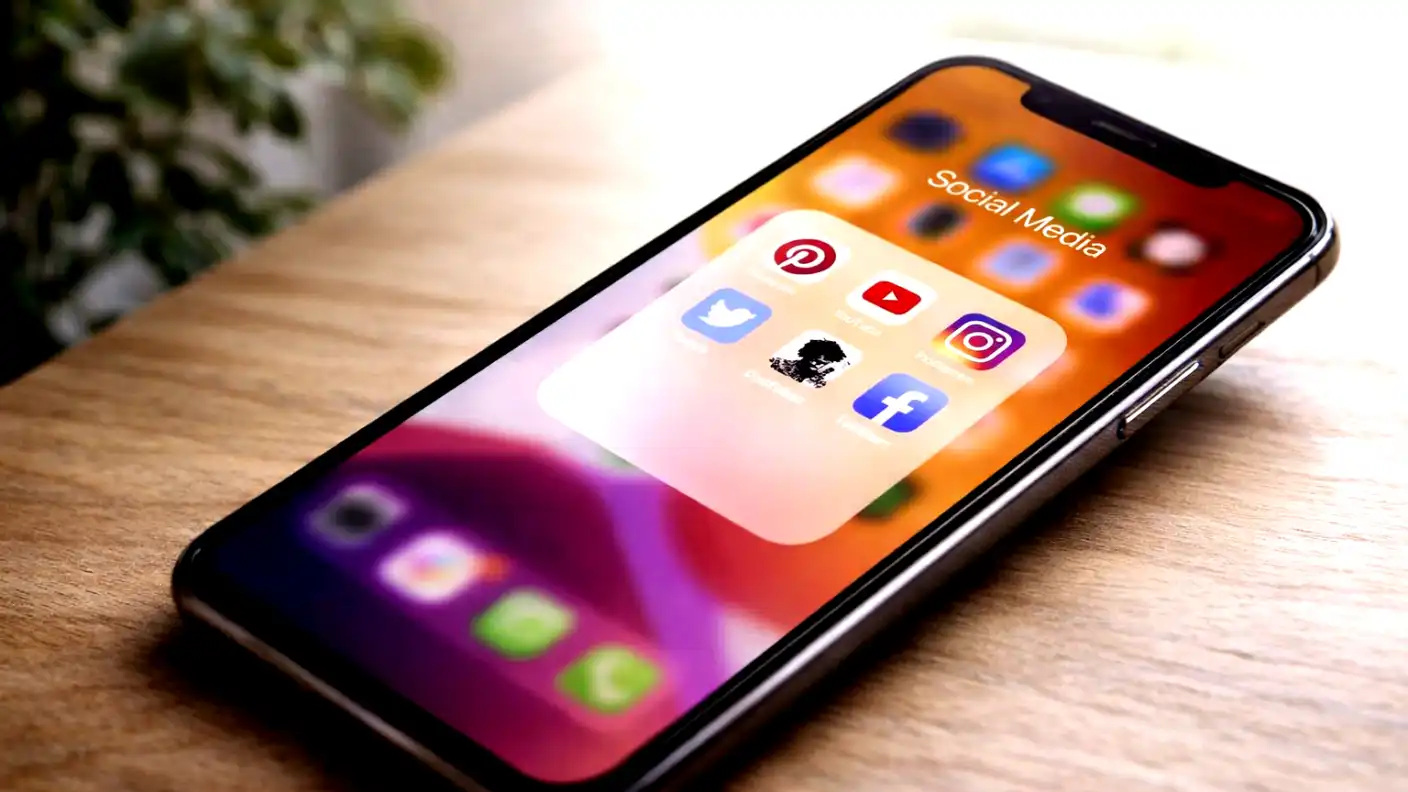
We live in an era of radical transparency. For the last decade, the unspoken social contract of the internet has been simple: we get free connection, entertainment, and networking, and in exchange, we hand over the keys to our personal lives. We share our birthdays, our locations, our family photos, our political opinions, and our employment history.
But the digital landscape is shifting. With the rise of data breaches, identity theft, sophisticated phishing scams, and the aggressive data scraping used to train Artificial Intelligence, that “free” exchange has become incredibly expensive. Your digital footprint is no longer just a collection of memories; it is a dossier that can be used by advertisers, insurers, criminals, and future employers.
Most people assume their accounts are secure because they have a strong password. However, privacy and security are two different beasts. Security is keeping hackers out. Privacy is controlling what the people inside—and the platform itself—can see.
If you haven’t checked your settings in the last six months, your data is likely more exposed than you think. Platforms frequently update their terms of service and default settings, often leaning toward “public” visibility to maximize engagement.
It is time to take back control. This comprehensive guide will walk you through a step-by-step Privacy Audit of your major social media accounts. We will move beyond the basics and dive into the deep settings to minimize your digital surface area and secure your online identity.
The Pre-Audit: The Google Test
Before you log into a single app, you need to see what the world sees. You need to view yourself through the eyes of a stranger, a recruiter, or a cybercriminal.
The Incognito Search
Open a private or incognito browser window. This is crucial because it ensures Google doesn’t tailor the results based on your previous search history.
- Search for your full name.
- Search your full name + your city.
- Search your full name + your current employer.
- Switch to the “Images” tab.
What do you see? Are there old tweets from 2013? Is your Pinterest board of “Wedding Ideas” public? Is your Venmo transaction history visible? This initial scan provides your baseline. It tells you which platforms are leaking the most information into the public domain. Note down any results that make you uncomfortable; these are your priority targets.
Facebook: The Data Giant
Facebook (Meta) typically holds the most data on its users and has the most complex, labyrinthine privacy settings. It requires the most time to audit properly.
The “Audience” Scrub
Navigate to Settings & Privacy > Settings > Audience and Visibility.
- Future Posts: Set this to “Friends.” Never leave your default as “Public.”
- Limit Past Posts: This is a nuclear option for privacy, and highly recommended. If you have been on Facebook for a decade, you have thousands of posts that might be public. Instead of scrolling back to 2012, find the option to “Limit Past Posts.” This button instantly changes the privacy setting of every post you have ever made from “Public” or “Friends of Friends” to “Friends Only.”
The Profile Lockdown
Your “About” section is a goldmine for identity thieves.
- Contact Info: Set your email address and phone number to “Only Me.” There is no reason for your Facebook friends to have this data scraped.
- Friends List: Set “Who can see your friends list?” to “Only Me.” Scammers use your friends list to create clone accounts and target your connections. By hiding it, you break the chain of social engineering.
- Searchability: Under “How people find and contact you,” turn OFF the setting that allows search engines outside of Facebook to link to your profile. This removes your Facebook profile from Google search results over time.
Off-Facebook Activity
This is a terrifying but important feature. Facebook tracks what you do on other websites to target ads.
- Go to Your Facebook Information > Off-Facebook Activity.
- You will likely see a list of your bank, your news sites, and your shopping apps.
- Click “Clear History” and then select “Disconnect Future Activity.” This stops Facebook from aggregating data about your life outside the app.
Instagram: Visual Vulnerabilities
Instagram is less text-heavy than Facebook, but images contain rich data points about your lifestyle, location, and habits.
The “Private Account” Switch
Unless you are an influencer or running a business, your account should be Private. This forces people to request to follow you, giving you a gatekeeper function.
- Go to Settings > Privacy and toggle on Private Account.
Story Privacy
Stories often reveal our real-time location.
- Close Friends: Utilizing the “Close Friends” list for personal or location-specific content is a smart layer of privacy.
- Sharing: Go to Settings > Privacy > Story. Turn off “Allow Sharing to Messages” and “Allow Sharing to Stories.” This prevents strangers from taking your content and sharing it in their own networks.
Activity Status
Do you want people to know exactly when you are scrolling?
- Go to Settings > Privacy > Activity Status. Turn this OFF. This prevents people from seeing the green dot next to your name in DMs, reducing the pressure to reply instantly and increasing your privacy.
The Tagging Control
By default, anyone can tag you in a photo, and it automatically appears on your profile. This allows malicious accounts or spam bots to associate your profile with unwanted content.
- Go to Settings > Privacy > Tags.
- Change “Allow Tags From” to “People You Follow” or “No One.”
- Turn on “Manually Approve Tags.” This ensures nothing appears on your profile without your explicit permission.
X (formerly Twitter): The Public Square
Twitter is designed to be a public broadcast platform, which makes privacy difficult. However, if you use it for personal updates rather than professional networking, you should lock it down.
Protect Your Tweets
- Go to Settings and Support > Settings and privacy > Privacy and safety > Audience and tagging.
- Check “Protect your posts.” This makes your account private. Only followers can see your tweets, and they cannot be retweeted. Crucially, your tweets will no longer appear in Google search results.
Discoverability
- Go to Privacy and safety > Discoverability and contacts.
- Uncheck “Let people who have your email address find you on Twitter” and “Let people who have your phone number find you on Twitter.”
This prevents your account from being linked to your real-world identity if you prefer to remain pseudonymous.
Location Stripping
- Go to Privacy and safety > Your posts.
- Ensure “Add location information to your posts” is unchecked.
- If you have ever used location in the past, select “Remove all location information attached to your posts.” This wipes the geotags from your entire history.
LinkedIn: The Professional Exposure
LinkedIn presents a unique challenge: you want to be found by recruiters, but you don’t want to be stalked.
Profile Viewing Options
- Go to Settings & Privacy > Visibility > Profile viewing options.
- Change this to “Private mode.” This allows you to view other people’s profiles without them knowing. If you are researching a competitor or looking up an ex-colleague, they won’t get a notification that you were there.
Network Visibility
Your connections list is a valuable asset. Do not let competitors poach your network.
- Go to Visibility > Connections.
- Change “Who can see your connections” to “Only you.”
The “Public Profile” Edit
You can control exactly what shows up when someone Googles you (without logging into LinkedIn).
- Go to Visibility > Edit your public profile.
- Here, you can toggle off specific sections. For example, you might want your summary and current job to be public, but hide your education details or past experience from non-LinkedIn members.
TikTok: The Data Vacuum
TikTok collects an immense amount of data. If you use it, you must be vigilant.
Downloads and Duets
- Go to Settings and privacy > Privacy.
- Turn OFF “Downloads.” This prevents people from saving your videos to their camera roll (though screen recording is still possible).
- Set “Duet” and “Stitch” to “Only Me” or “Friends” to prevent strangers from using your footage in their content.
Contact Syncing
TikTok aggressively tries to build your social graph.
- Go to Settings and privacy > Privacy > Sync contacts and Facebook friends.
- Turn these OFF. If they are on, TikTok is uploading your entire phone book to their servers to match you with people you know.
Ad Personalization
- Go to Settings and privacy > Ads.
- You cannot turn off ads, but you can turn off “Targeted Ads” based on off-TikTok activity. This stops the app from tracking your behavior across other websites.
The Hidden Danger: Third-Party App Permissions
Over the years, you have likely used “Log in with Facebook” or “Log in with Google” to sign up for countless apps, quizzes, and games. These apps often retain access to your data indefinitely, even if you deleted the app from your phone years ago.
The Audit Protocol
- Facebook: Settings > Apps and Websites.
- Twitter: Settings > Security and account access > Apps and sessions.
- Google: My Account > Security > Third-party apps with account access.
- LinkedIn: Settings > Data privacy > Other applications.
Look at the list. Do you see a “What Vegetable Are You?” quiz from 2014? Do you see a dating app you haven’t used in five years?
Remove them. Every active connection is a potential backdoor. If that third-party app gets hacked, your primary social media account could be compromised. Be ruthless—if you don’t use it daily, revoke access.
Location Services: The Real-World Track
Your photos and posts often carry invisible metadata (EXIF data) that reveals exactly where you were standing when you took a picture. Furthermore, social media apps love to track your movements to serve location-based ads.
System-Level Revocation (iOS and Android)
Do not trust the app settings alone. Go to your phone’s main settings.
- iOS: Settings > Privacy & Security > Location Services.
- Android: Settings > Location > App permissions.
Review every social media app. Change the permission from “Always” to “Never” or “While Using.” There is absolutely no reason for Facebook or Instagram to have access to your location when the app is closed.
Also, turn off “Precise Location” for apps that don’t need it. Instagram doesn’t need to know which house you are in; knowing the city is enough.
The Human Factor: Social Engineering Defense
No amount of privacy settings can protect you if you voluntarily hand over information. A privacy audit includes auditing your own behavior.
The “Security Question” Trap
Stop answering viral memes that ask questions like:
- “What was the name of your first pet?”
- “What was the make of your first car?”
- “What street did you grow up on?”
These are not fun games. They are data harvesting operations designed to gather the answers to common security questions used by banks and email providers. If you answer these publicly, you are giving hackers the keys to reset your passwords.
The “Life Event” Delay
Avoid posting sensitive life events in real-time.
- Vacation: Post photos after you return home. Posting while you are away signals that your home is empty.
- New Home: Never post a photo of your new house keys (hackers can duplicate keys from high-res photos) or the front of your house with the house number visible.
Two-Factor Authentication (2FA): The Final Lock
Privacy controls who sees your data; security controls who accesses your account. You cannot have privacy without security.
You must enable Two-Factor Authentication on every social media account.
- Avoid SMS 2FA: Text message verification is vulnerable to “SIM Swapping” attacks.
- Use an Authenticator App: Use apps like Google Authenticator, Authy, or 1Password. These generate codes locally on your device and are much harder to hack.
- Backup Codes: When you set up 2FA, the platform will give you a set of “Backup Codes.” Print these out and put them in a physical safe or firebox. If you lose your phone, these are the only ways back into your account.
Maintenance: The Quarterly Review
Digital privacy is not a one-time event; it is a hygiene practice. Platforms update, settings reset, and new features are introduced constantly.
Set a recurring calendar event for every three months: “Digital Privacy Check.”
During this check:
- Review your “Logged In Sessions” to ensure no unknown devices are accessing your accounts.
- Check for new privacy features or policy changes.
- Audit your friends list and remove people you no longer speak to.
- Delete old posts that no longer represent who you are.
Conclusion
Performing a privacy audit can feel tedious. It involves digging through menus, toggling switches, and making hard decisions about convenience versus security. But the payoff is profound.
By curating your digital footprint, you are not just hiding; you are taking ownership. You are deciding that your personal life belongs to you, not to an algorithm, a data broker, or a stranger. You are building a digital presence that serves your interests, protects your reputation, and keeps your loved ones safe.
In a world that demands we share everything, the ultimate power move is deciding what not to share. Take control today.