

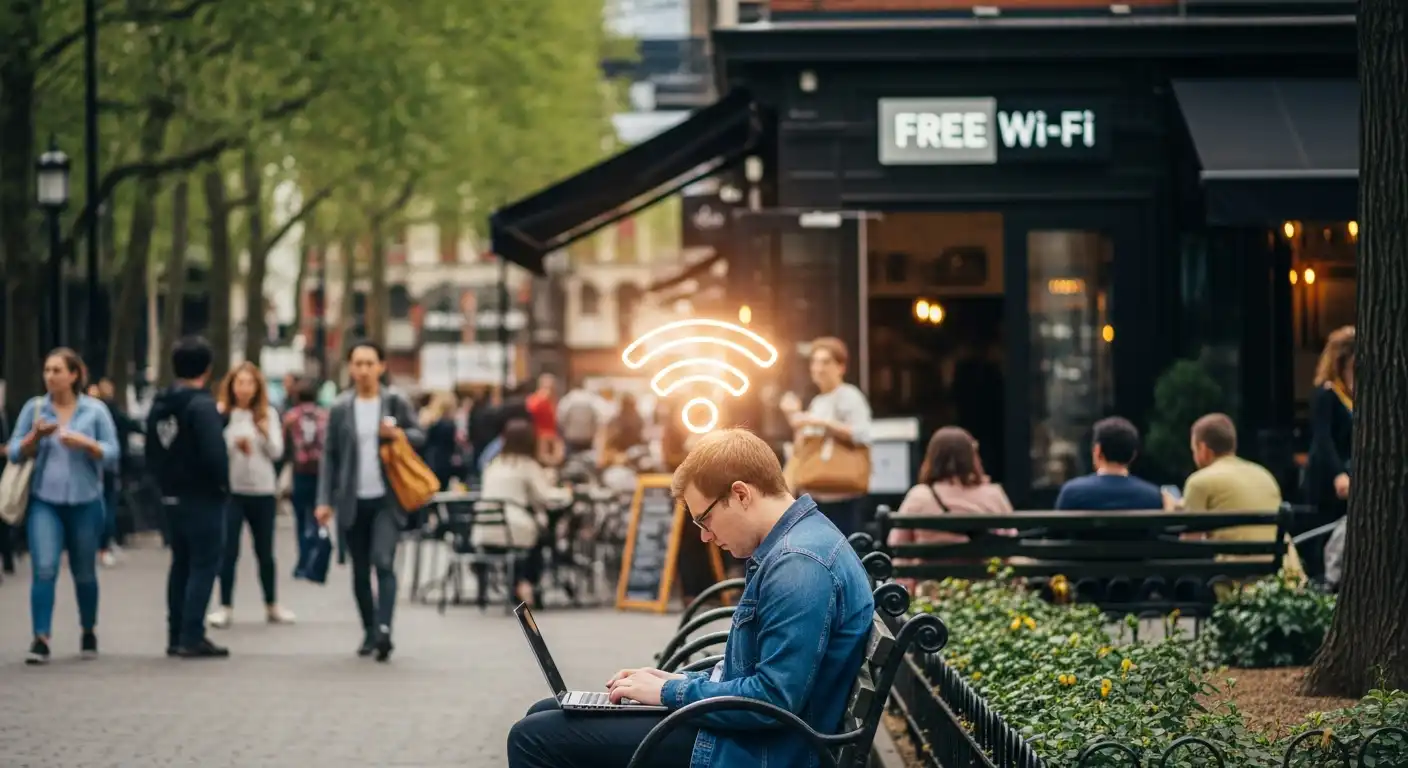
The scenario is familiar to almost everyone. You are sitting in a bustling coffee shop, waiting for your latte, or perhaps you are stuck during a layover at a busy international airport. You have an hour to kill, some emails to answer, or maybe you just want to scroll through social media to pass the time. You open your laptop or unlock your phone, check the available networks, and there it is: “Free_Airport_WiFi” or “CoffeeShop_Guest.”
It is open. It is free. It is convenient. You tap “Connect,” agree to some terms and conditions you didn’t read, and you are online.
But in that split second of connection, you have potentially opened a door to your digital life that you may not be able to close.
Public Wi-Fi has become a utility almost as essential as electricity in our modern lives. It allows digital nomads to work from Bali, students to study in libraries, and travelers to stay connected without exorbitant roaming fees. However, this convenience comes with a significant, often invisible price tag: Security.
The short answer to the question “Is public Wi-Fi safe?” is a resounding no. By its very nature, public Wi-Fi is insecure. But the long answer is more nuanced. While it is inherently risky, there are tools, behaviors, and strategies you can employ to turn a digital minefield into a manageable path.
This comprehensive guide will demystify the dangers of public Wi-Fi, explain exactly what hackers can see when you connect, and equip you with a fortress of strategies to keep your data—and your identity—secure while you are on the go.
The Anatomy of the Threat: Why Public Wi-Fi is a Hacker’s Playground
To protect yourself, you must first understand the enemy. Why is public Wi-Fi so dangerous? The core issue lies in the lack of authentication and encryption.
On your home Wi-Fi network, you likely have a password (WPA2 or WPA3 encryption). This means that the data traveling between your laptop and your router is scrambled. If a neighbor were to intercept that signal, they would see gibberish.
Public Wi-Fi, specifically “open” networks that require no password to connect, does not usually offer this encryption. Even networks that require you to “log in” via a webpage (a captive portal) often do not encrypt the traffic between devices on the network.
This lack of encryption creates a “flat” network. In a flat network, every device is shouting its data across the room, and anyone with the right software can listen in. Here is a breakdown of the specific attacks that occur in these environments.
The Man-in-the-Middle (MitM) Attack
This is the most common threat. Imagine you are passing a physical note to your friend in a classroom. A Man-in-the-Middle attack is like a bully sitting between you and your friend. You pass the note, the bully intercepts it, reads it, maybe changes the words, and then passes it to your friend. Neither you nor your friend knows the note was tampered with.
In the digital world, a hacker positions their device between you and the Wi-Fi router. When you send your credit card information to a website, it first passes through the hacker’s device. They can harvest your login credentials, banking information, and private messages in real-time.
The Evil Twin Attack
You walk into a café called “The Roasted Bean.” You open your Wi-Fi settings and see two networks: “RoastedBean_WiFi” and “RoastedBean_Guest_Free.” Which one is real?
One of them might be a legitimate router set up by the café owner. The other might be a hacker sitting in the corner with a pineapple router (a small, powerful device used for network auditing and hacking) broadcasting a signal with the same name. This is an Evil Twin.
If you connect to the Evil Twin, you aren’t connecting to the internet; you are connecting directly to the hacker’s device. They control the connection entirely. They can show you fake banking login pages, inject malware into your downloads, and record every keystroke you make.
Packet Sniffing
Data travels across the internet in small units called “packets.” On an unencrypted network, these packets are flying through the air like radio waves. Packet sniffing involves using software (such as Wireshark) to capture packets.
While this sounds high-tech, it is disturbingly easy. A teenager with a YouTube tutorial can learn to sniff packets in an afternoon. If you are on an unencrypted HTTP website, a packet sniffer can reconstruct your browsing history and read the text of your emails.
Session Hijacking (Sidejacking)
When you log into Facebook or Amazon, the server gives your computer a “session cookie”—a temporary pass that says, “This user is logged in, don’t ask for their password again for a while.”
If a hacker intercepts this cookie over public Wi-Fi, they can inject it into their own browser. Suddenly, the website thinks you’re the hacker. They are logged into your account without ever needing your password.
The “S” in HTTPS: Your First Line of Defense
You may have heard the advice: “Look for the padlock icon in your browser.”
This refers to HTTPS (Hypertext Transfer Protocol Secure). The “S” stands for Secure. It means the website uses SSL/TLS encryption to establish a secure tunnel between your browser and its server.
Does HTTPS Protect Me on Public Wi-Fi?
Yes and no. If you are on public Wi-Fi and you visit a secure site (like https://www.google.com), the content of your communication is encrypted. A hacker sniffing packets might see that you are on Google, but they cannot see what you are searching for.
However, HTTPS is not a silver bullet for three reasons:
- SSL Stripping: Sophisticated hackers can use software to downgrade your connection from HTTPS to HTTP without you noticing, stripping away the encryption.
- DNS Leakage: Even with HTTPS, your computer still has to ask a Domain Name Server (DNS) where the website is located. These requests are often unencrypted, so a hacker can see exactly which websites you are visiting, even if they can’t see the specific pages or content.
- Malicious Sites can use HTTPS: Just because a site has a padlock doesn’t mean it’s safe. Phishing sites often use HTTPS to look legitimate.
The Ultimate Shield: Why You Need a VPN
If you take only one piece of advice from this article, let it be this: Never use public Wi-Fi without a VPN.
A VPN (Virtual Private Network) is the single most effective tool for securing your data on untrusted networks.
How a VPN Works
Imagine the public Wi-Fi network is a glass tunnel. Everyone standing outside can look in and see what you are carrying. A VPN takes your data and puts it inside a lead pipe within that glass tunnel. The hacker can see the pipe (the VPN connection), but they cannot look inside it.
When you turn on a VPN, your traffic is encrypted on your device before it ever reaches the Wi-Fi router. It travels through the router, across the internet, to the VPN server, and then to its final destination. Even if you connect to an Evil Twin hotspot, the hacker will only see gibberish.
Choosing the Right VPN
Not all VPNs are created equal. In fact, many free VPNs are just as dangerous as public Wi-Fi because they sell your data to advertisers to cover their costs. When choosing a VPN for travel and public Wi-Fi use, look for these criteria:
- AES-256 Encryption: a military-grade encryption standard.
- Kill Switch: If your VPN connection drops for a second, your device might try to reconnect to the Wi-Fi insecurely. A kill switch instantly cuts your internet access to prevent data leaks.
- No-Logs Policy: Ensure the provider does not keep records of your browsing activity.
- Paid Subscription: As the adage goes, “If you aren’t paying for the product, you are the product.” Invest in a reputable paid service like NordVPN, ExpressVPN, or ProtonVPN.
Critical Settings: Hardening Your Device
Before you step out the door, you need to configure your laptop, tablet, and smartphone to be less hospitable to intruders. Most devices are set up for convenience, not security, by default.
Disable Automatic Connections
Your phone is constantly shouting, “Is my home Wi-Fi here? Is my work Wi-Fi here?” It is also often set to “Auto-join open networks.” Hackers can set up devices that respond with “Yes, I am your home Wi-Fi!” to trigger your phone to connect automatically.
- On iPhone: Go to Settings > Wi-Fi > Ask to Join Networks (Set to “Ask” or “Off”). Also, turn off “Auto-Join” for specific public networks you have used before.
- On Android: Go to Settings > Network & Internet > Wi-Fi > Wi-Fi Preferences. Toggle off “Connect to open networks.”
Turn Off File Sharing and AirDrop
When you are at home, it’s great to share files between your computer and your printer. On public Wi-Fi, having “File Sharing” on is like leaving your front door unlocked.
- Windows: Go to Control Panel > Network and Sharing Center > Change advanced sharing settings. Select “Turn off file and printer sharing.”
- Mac: Go to System Settings > General > Sharing. Uncheck “File Sharing.”
- AirDrop (iOS/Mac): Set AirDrop to “Contacts Only” or “Receiving Off” when in public spaces to avoid unsolicited files and potential exploits.
Enable Your Firewall
A firewall acts as a barrier that checks information coming from the internet or a network and either blocks it or allows it to pass through to your computer.
- Windows: Ensure Windows Defender Firewall is on.
- Mac: Go to System Settings > Network > Firewall, and ensure it is enabled. (It is often off by default on macOS.)
Forget the Network
When you are done using a public network, tell your device to “Forget This Network.” This prevents your device from automatically reconnecting to it (or a hacker mimicking it) in the future.
Behavioral Security: Habits That Keep You Safe
Software solutions are powerful, but they cannot fix human error. Your behavior is the final layer of defense.
The “No Banking” Rule
This is a non-negotiable rule of digital hygiene. Never, under any circumstances, log into your bank account, access investment portfolios, or enter credit card details while on public Wi-Fi, even with a VPN. The risk is simply not worth it. Wait until you are on a secure home network or switch to your mobile data.
Use Two-Factor Authentication (2FA)
2FA acts as a fail-safe. If a hacker manages to sniff your password via a man-in-the-middle attack, they still cannot access your account without the second factor (usually a code sent to your phone or generated by an app). Enable 2FA on every account that supports it: email, social media, banking, and cloud storage.
Verify the Network Name
If you are at a coffee shop, ask the barista for the exact name of the network. Is it “Starbucks_WiFi” or “Starbucks_Guest”?
Hackers rely on slight spelling variations to trick you (e.g., “Starbucks_WiFi”). Taking ten seconds to verify can save you from an Evil Twin attack.
Keep Your Browser Updated
Browser developers (Chrome, Firefox, Safari) are constantly patching security holes. An outdated browser is vulnerable to “exploit kits” that can be delivered over compromised Wi-Fi networks. Enable auto-updates.
The Better Alternative: Mobile Data and Hotspots
If you are reading this and thinking, “This sounds like a lot of work,” you are right. Securing public Wi-Fi is a hassle. Fortunately, there is a superior alternative that is becoming increasingly accessible: Your Mobile Data.
Cellular networks (4G/5G) are significantly more secure than Wi-Fi. The carrier encrypts the data, and individual users are authenticated via their SIM cards. It is much harder for a hacker to intercept cellular data than Wi-Fi data.
Tethering (Personal Hotspot)
Most modern smartphones allow you to create a “Personal Hotspot.” This turns your phone into a secure, password-protected Wi-Fi router for your laptop.
- Pros: Highly secure, convenient, and it works everywhere you have cell service.
- Cons: Can drain your phone battery and eat into your data cap.
However, with the rise of unlimited data plans, tethering is becoming the gold standard for secure remote work. If you work with sensitive corporate data, you should use a hotspot rather than the hotel Wi-Fi.
What to Do If You Think You’ve Been Compromised
Perhaps you read this article too late. You were at the airport yesterday, you connected to an open network without a VPN, and you logged into your email. Now your computer is acting sluggishly, or you’re seeing strange pop-ups. What do you do?
- Disconnect Immediately: Turn off your Wi-Fi.
- Run a Malware Scan: Use reputable antivirus software (e.g., Malwarebytes, Bitdefender) to scan your device for any malicious software that may have been injected.
- Change Passwords: Using a different network (such as your home Wi-Fi or mobile data), change the passwords for any accounts you accessed while on the suspect Wi-Fi. Start with your email password, as that is the master key to your other accounts.
- Check Bank Statements: Monitor your financial accounts closely for the next few weeks for any unauthorized transactions.
- Log Out of All Sessions: Go to your email and social media settings and select “Log out of all other sessions.” This kicks out anyone who might have session-hijacked your account.
Conclusion
The internet was built on the principles of openness and sharing, not security. Public Wi-Fi is the physical manifestation of that original ideal—and its inherent flaws.
Does this mean you should never use public Wi-Fi again? Not necessarily. It means you should stop treating it like your living room and start treating it like a public street. You wouldn’t leave your wallet sitting on a park bench, and you shouldn’t leave your data exposed on a public network.
By using a VPN, hardening your device settings, and maintaining a healthy level of skepticism, you can enjoy the convenience of connectivity without becoming a victim. The digital world is full of invisible risks, but with the right tools, you can navigate them safely. Stay connected, but more importantly, stay secure.