

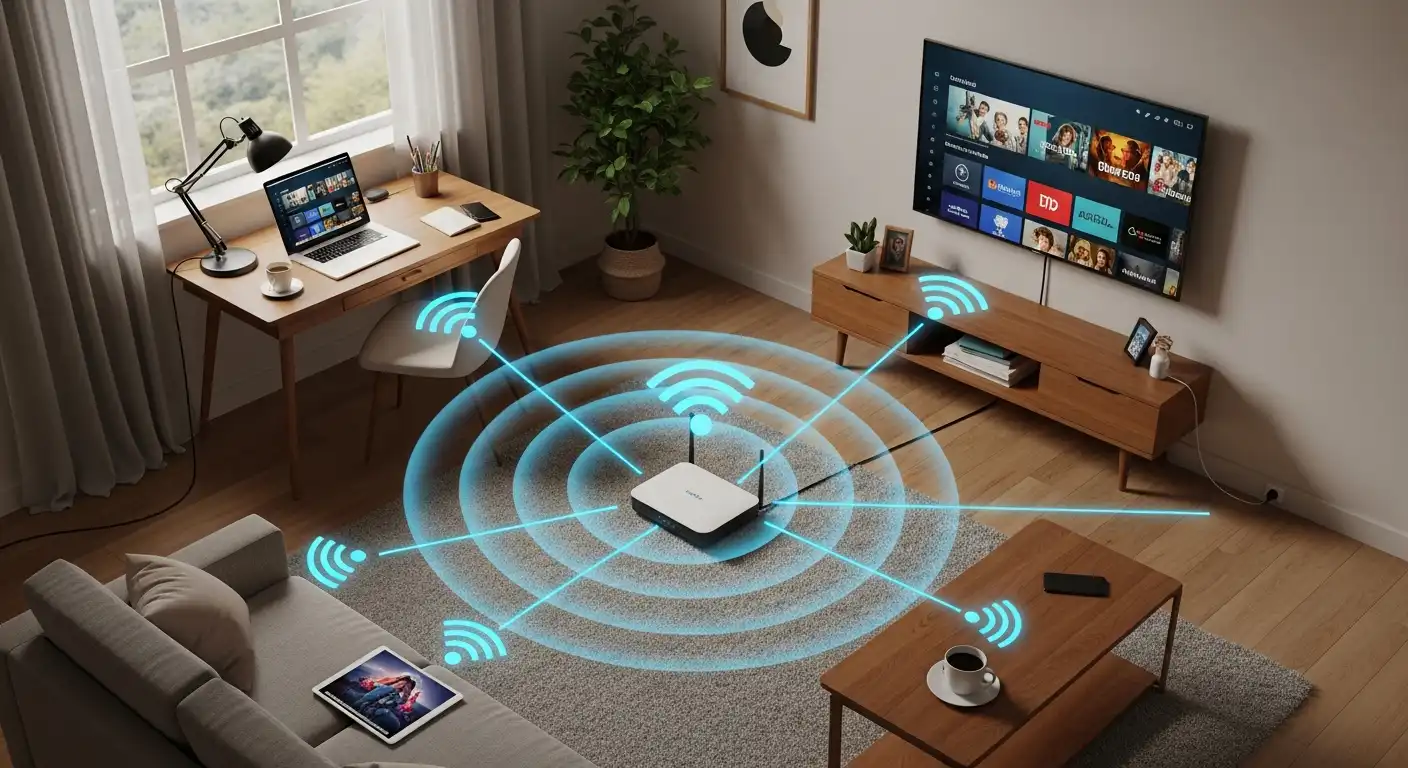
Imagine leaving your front door wide open, twenty-four hours a day, seven days a week. You wouldn’t just be inviting thieves to take your television; you would be inviting them to listen to your conversations, look through your photo albums, and rifle through your filing cabinets.
In the physical world, this sounds absurd. Yet, in the digital world, millions of homeowners do exactly this by neglecting their Wi-Fi security.
Your router is the digital front door to your home. It is the bridge between the chaotic, predatory wilds of the public Internet and the private sanctuary of your personal data. Every device you own—your laptop, your smartphone, your smart TV, your thermostat, and even your refrigerator—connects through this single gateway. If that gateway is weak, everything behind it is vulnerable.
An unsecured network does not just mean a neighbor might steal your bandwidth to stream Netflix. It allows malicious actors to intercept your credit card information, hijack your smart devices to launch attacks on others (botnets), or install malware on your computer without you ever clicking a suspicious link.
The good news is that securing your network does not require a degree in computer science. It requires a few hours, some patience, and a willingness to change default settings. This comprehensive guide will walk you through every layer of Wi-Fi security, from the basics to advanced hardening techniques, ensuring your digital home is secure.
Understanding the Threat Landscape
Before we dive into the “how,” it is essential to understand the “why.” What exactly are we protecting against?
- Piggybacking: The annoyance of neighbors or passersby using your connection. While it slows down your Netflix, the real danger is that if they commit a crime using your IP address (such as downloading illegal content), the police show up at your door, not theirs.
- Data Interception (Sniffing): On an unsecured network, data travels in plain text over the air. Hackers can use software to “sniff” these packets, plucking passwords, emails, and banking details out of thin air.
- Man-in-the-Middle Attacks: An attacker intercepts communication between two parties (you and your bank) to steal data or manipulate the conversation.
- Botnets: Hackers often target vulnerable routers not to steal from you, but to enslave them. They add it to a “botnet”—a network of infected devices used to launch massive cyberattacks on governments or corporations.
Now that we know the stakes, let’s finalize.
Step 0: Accessing the Command Center
To secure your router, you must access its administrative interface. This is the control panel where all settings live.
- Find your Router’s IP Address:
- On Windows: Open Command Prompt, type ipconfig, and press Enter. Look for the “Default Gateway.” That string of numbers (usually 192.168.1.1 or 192.168.0.1) is your router’s address.
- On Mac: Go to System Preferences > Network > Advanced > TCP/IP. You will see “Router” followed by the IP address.
- On Mobile: Many modern routers (such as Eero, Google Nest, or Netgear Orbi) are managed exclusively via a smartphone app. If you have one of these, open the app.
- Log In: Type that IP address into your web browser’s address bar. You will be prompted for a username and password. If you have never changed this, it is likely printed on a sticker on the bottom of the router. Common defaults are “admin/password” or “admin/admin.”
Crucial Note: If you cannot log in, you may need to perform a factory reset on the router (usually a small pinhole button held for 10 seconds) to restore the router to its default settings.
Level 1: The Non-Negotiable Basics
These are the steps you must take immediately. If you do nothing else, do these.
Change the Default Administrator Password
This is the single most common vulnerability. There are databases online that list the default passwords for every router model ever made. If a hacker knows you have a Linksys router and you haven’t changed the login, they can walk right in.
- The Fix: Navigate to the “Administration” or “System” tab in your router settings. Change the password to something complex. This is not the Wi-Fi password; it is the password to change Wi-Fi settings. Write it down and tape it to the bottom of the router—hackers can’t read a piece of paper unless they break into your house.
Change the Wi-Fi Network Name (SSID)
Your Service Set Identifier (SSID) is the name your neighbors see (e.g., “Netgear55” or “Linksys-B”). Keeping the default name tells a hacker exactly which router model you are using. Knowing the model allows them to look up specific vulnerabilities associated with that hardware.
- The Fix: Change the name to something that doesn’t give anything away. Avoid “Smith Family Wi-Fi” or “Unit 4B.” Use something generic or fun, such as “FBI Surveillance Van,” “Loading…,” or simply “BlueHouse.”
- Myth Buster: You may see an option to “Hide SSID.” This prevents your name from being broadcast. While this sounds secure, it creates convenience issues for your devices and doesn’t actually stop hackers, who can still “see” the network traffic. It is generally better to have a visible name with strong security than a hidden name.
Enable WPA3 (or WPA2) Encryption
Encryption scrambles data on your computer so that even if someone intercepts it, it appears to be gibberish.
- The Standard: Look for the “Wireless Security” settings. You will see options like WEP, WPA, WPA2, and WPA3.
- Avoid WEP: WEP (Wired Equivalent Privacy) is ancient and can be cracked in minutes by a teenager with a YouTube tutorial. Never use WEP.
- The Goal: Select WPA3-Personal if your devices are new enough to support it. If not, select WPA2-AES. Avoid “WPA2-TKIP” as AES is more secure.
Choose a Strong Wi-Fi Password
This is the password you type into your phone to connect to the Internet.
- Length beats Complexity: A password like Tr0ub4dor&3 is hard for humans to remember but surprisingly easy for computers to crack. A passphrase like CorrectHorseBatteryStaple (four random common words strung together) is incredibly hard for computers to crack but easy for you to remember. Aim for at least 15-20 characters.
Level 2: Hardening the Perimeter
Once the basics are set, it’s time to close the loopholes that manufacturers leave open for “convenience.”
Disable WPS (Wi-Fi Protected Setup)
You know that little button on the router that lets you connect a device without typing the password? That is WPS. While convenient, it has a massive security flaw. Hackers can use “brute force” attacks to guess the WPS PIN in a matter of hours. Once they have the PIN, they have the password.
- The Action: Go to “Wireless” or “Advanced” settings and toggle WPS to OFF. You will need to enter your password to connect new devices, but the security benefit is worth the 30 seconds.
Update the Router Firmware
Your router runs on firmware. Like Windows or macOS, this software has bugs and security vulnerabilities. Manufacturers release updates to patch these holes, but many older routers do not update automatically.
- The Action: Locate the “Firmware Update” section in the admin panel. Click “Check for Updates.”
- Pro Tip: If your router is more than 5 years old and the manufacturer is no longer releasing updates for it, it is considered “End of Life.” It is time to buy a new router. An unpatched router is a sitting duck.
Turn Off Remote Management
“Remote Management” or “Remote Administration” allows you to log into your router’s admin panel from anywhere in the world. Unless you are a network engineer who needs to fix your home internet while vacationing in Bali, you do not need this.
- The Risk: If you can access your router from the Internet, a hacker can too.
- The Action: Find the “Remote Management” setting and ensure it is disabled. You should only be able to change settings when you are physically connected to your home network.
Level 3: Network Segmentation (The “Pro” Strategy)
This is the most effective strategy for the modern “Smart Home.” Segmentation means dividing your network into separate lanes so that, if one device is compromised, an attacker cannot move laterally to other devices.
The Guest Network
Most modern routers allow you to create a “Guest Network.” This provides internet access but prevents devices from communicating with one another on the network.
- The Use Case: When friends come over, provide them with the Guest Wi-Fi credentials. If their phone is infected with malware, it cannot spread to your laptop.
- The Strategy: Keep your main network exclusively for your trusted devices (your PC, your phone, your tablet). Put everyone and everything else on the Guest Network.
IoT Isolation (Internet of Things)
Smart lightbulbs, cheap security cameras, and smart fridges are notoriously insecure. They often have hard-coded passwords and rarely get security updates. If a hacker gains access to your smart bulb, they can use it as a bridge to reach your laptop, where your banking data resides.
- The Fix: Put all your smart home devices on the Guest Network. Because the Guest Network isolates devices, a compromised smart bulb is trapped in a sandbox. It can connect to the Internet, but it cannot connect to your main computer.
Level 4: Advanced Defense
If you handle sensitive data or just want to be virtually bulletproof, consider these advanced measures.
MAC Address Filtering (The “Bouncer”)
Every device has a unique fingerprint called a MAC (Media Access Control) address. You can set your router to create a “Whitelist”—a list of allowed devices. If a device’s MAC address is not on the list, it gets blocked, even if it has the correct password.
- The Downside: This is tedious to maintain. Every time you buy a new phone or a friend comes over, you have to log into the router and add the address. Also, sophisticated hackers can “spoof” (fake) MAC addresses. Use this only if you want extreme control.
Lower Transmit Power
If you live in a small apartment but your router is blasting a signal strong enough to reach the parking lot across the street, you are expanding your “attack surface.”
- The Action: Some routers allow you to adjust “Transmit Power.” Lower it until you still have good speed in your home, but the signal drops off immediately outside your walls. If a hacker can’t get a signal, they can’t hack you.
Schedule Wi-Fi Access
If you are asleep from 11 PM to 7 AM, do you need your Wi-Fi broadcasting?
- The Action: Many routers support scheduling. Turning off the wireless radio at night eliminates the risk of unauthorized access during those hours. It also has the added benefit of preventing late-night doom-scrolling.
Level 5: Physical Security and DNS
Security isn’t just about software; it’s about hardware and pathways.
Physical Placement
Do not place your router near a window. This extends the signal further, inviting wardrivers (people searching for Wi-Fi) to try their luck. Place the router in the center of the home. This improves coverage for you and weakens the signal for outsiders.
Change Your DNS Servers
By default, your router uses your Internet Service Provider (ISP) Domain Name System (DNS) servers to translate web addresses (such as google.com) into IP addresses. ISP DNS servers can be slow and often log your browsing history.
- The Fix: Change your router’s DNS settings to a secure, privacy-focused provider.
- Cloudflare (1.1.1.1): Known for speed and privacy (they promise not to sell your data).
- Quad9 (9.9.9.9): Blocks known malicious websites automatically.
Disable UPnP (Universal Plug and Play)
UPnP enables devices to automatically find one another and open firewall ports to the Internet. It is designed for convenience (gaming consoles use it for multiplayer matchmaking), but it is a massive security hole. Malware uses UPnP to punch holes in your firewall without your permission.
- The Action: Disable UPnP. If you are a gamer and notice connection issues, learn how to manually “Port Forward” for your specific console. It is more work, but significantly safer.
Maintenance: The Ongoing Vigilance
Security is not a “set it and forget it” event. It is a process.
- The Quarterly Audit: Every three months, log in to your router and review the “Attached Devices” list. Do you recognize every device? If you see “Unknown-Android-Device,” pause. If you can’t identify it, change your Wi-Fi password immediately. This kicks everyone off, and you can reconnect only the trusted devices.
- Reboot Regularly: Rebooting your router clears its short-term memory and can disrupt sophisticated malware that resides in the router’s RAM (such as VPNFilter). Some modern routers can be scheduled to reboot automatically at 4 AM each week.
- Monitor Speed: A sudden, unexplained drop in internet speed can indicate that someone else is using your bandwidth or that your router is part of a botnet.
What to Do If You’ve Been Compromised
If you suspect an intruder—your Internet is crawling, you see strange devices on your network, or you are getting browser redirects—take the “Nuclear Option.”
- Factory Reset: Press and hold the reset button on the router for 10-15 seconds. This wipes everything.
- Update Firmware: Immediately update the firmware to the latest version.
- New Credentials: Set a new admin password and a new Wi-Fi SSID and password. Do not reuse the old ones.
Conclusion
As you read this guide, it might feel daunting to secure your Wi-Fi. It involves IP addresses, acronyms, and digging through ugly menus from the early 2000s.
But consider the alternative. Our lives are increasingly digital. Our bank accounts, memories, communications, and identities live on the network. The router is the wall that protects life. Leaving it unsecured is a gamble that simply isn’t worth the risk.
You don’t need to implement every single advanced step today. Start with the basics: strong passwords, WPA3 encryption, and firmware updates. Once those are done, you are already more secure than 90% of households.
Take an hour this weekend. Pour a cup of coffee, log into your router, and lock your digital front door. The peace of mind you gain is the ultimate upgrade for your home.