

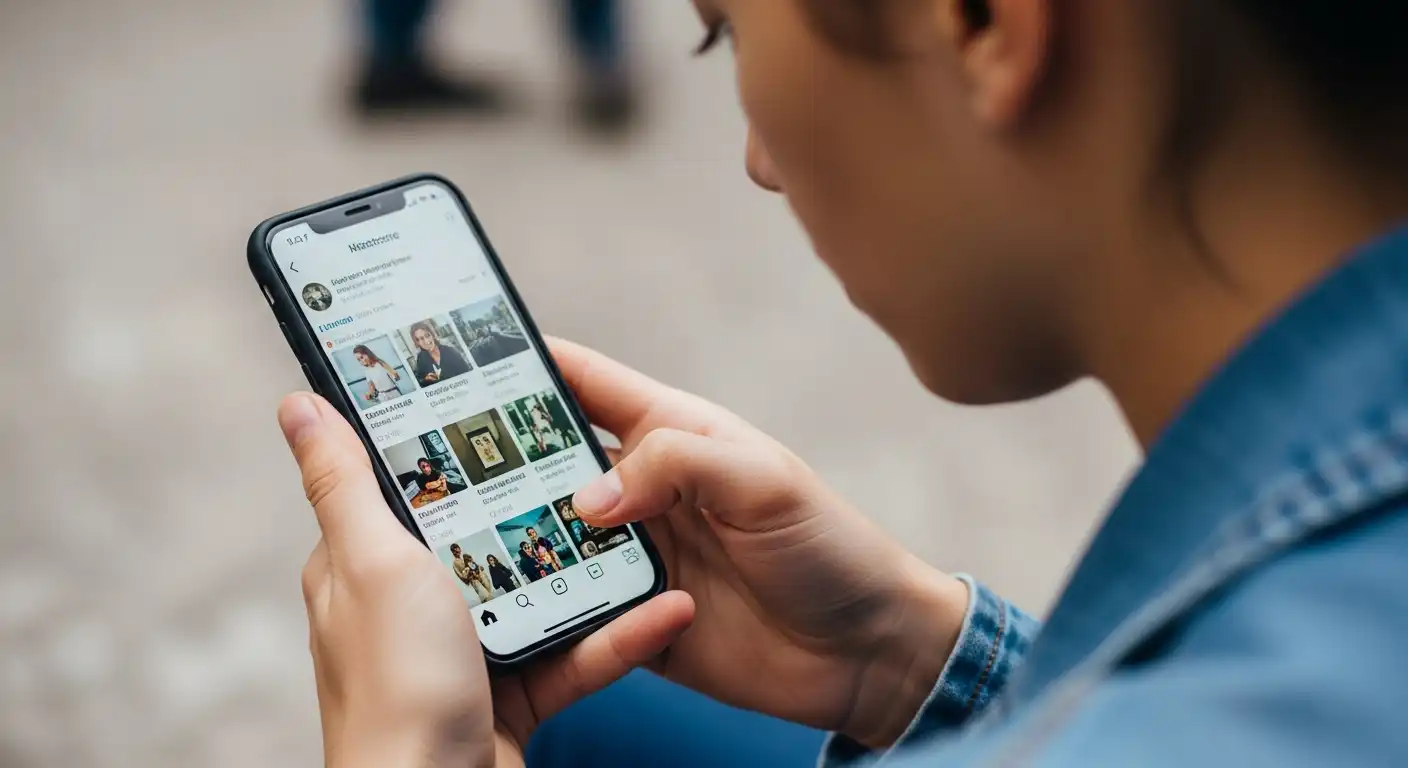
In the modern era, the smartphone is a paradox. It is the most powerful tool for productivity ever invented, capable of running businesses, managing finances, and connecting us with anyone on Earth in milliseconds. Yet, simultaneously, it is the single greatest destroyer of focus, a portable dopamine dispenser that fractures our attention spans and eats away at our free time.
We have all experienced the “time warp.” You pick up your phone to check the weather, and suddenly, 45 minutes have vanished into the void of a social media feed. You feel a mix of guilt, lethargy, and confusion. Where did the time go?
Recognizing this growing crisis, tech giants Apple and Google introduced native solutions: Screen Time (iOS) and Digital Wellbeing (Android). These dashboards were designed to give users transparency and control over their digital lives. However, simply having these tools on your phone is not enough. Most people glance at the weekly report, feel a moment of shame about their daily average, and then dismiss the notification. To truly reclaim your time, you must move from passive observation to active management. You must learn to wield these tools not just as trackers, but as fences, filters, and firewalls.
This comprehensive guide will walk you through the psychology of digital addiction, the specific mechanics of iOS and Android tools, and advanced strategies to transform your phone from a master back into a servant.
The Psychology of the “Nudge”: Why Willpower Isn’t Enough
Before diving into settings and toggles, it is crucial to understand why “just trying harder” to stay off your phone rarely works. The apps on your phone are engineered by some of the smartest minds in the world to be addictive. They utilize intermittent reinforcement schedules (like slot machines) and social validation loops to keep you hooked.
Relying on willpower to fight a supercomputer is a losing battle. Willpower is a finite resource that depletes throughout the day. By 8:00 PM, you have likely exhausted your decision-making reserves, making you easy prey for the infinite scroll.
Screen Time tools work because they introduce friction. They do not necessarily forbid you from using an app; they just make it slightly annoying to do so. In behavioral psychology, adding a barrier—even a small one, like a one-second pause or a PIN code—can be enough to break the “zombie check” loop and engage your prefrontal cortex (the logical part of your brain).
Your goal with these tools is not to reach zero screen time. It is to eliminate “junk” screen time (mindless scrolling) while preserving “tool” screen time (navigation, communication, learning).
Phase 1: The Digital Audit (Confronting the Data)
You cannot manage what you do not measure. The first step to digital wellness is a brutal, honest look at your current habits.
Locating the Dashboard
- On iPhone: Go to Settings > Screen Time. Tap “See All Activity.”
- On Android: Go to Settings > Digital Wellbeing & parental controls. Tap the pie chart or “Dashboard.”
What to Look For
Do not just look at the big number (e.g., “5 hours a day”). That number is misleading because it includes productive things like Google Maps or Spotify. You need to drill down.
- Most Used Apps: Look at the top three. Are they tools (Calendar, Notes) or toys (TikTok, Instagram, Games)? If your top apps are toys, you have a problem.
- Pickups (Unlocks): This is the most telling metric. It measures how many times you unlock your phone. If you have 100+ pickups a day, you are checking your phone roughly every 10 minutes. This indicates a compulsive checking habit.
- First Used After Pickup: What is the first app you open? If it’s social media, you are effectively “doping” your brain with cheap entertainment every time you touch the device.
- Notifications: Which apps are buzzing you the most? This list is your “Distraction Hit List.”
The Action Step: Spend one week just observing. Don’t change anything yet. Just notice. “Oh, I spent 2 hours on Twitter today.” “I picked up my phone 15 times in the last hour.” This awareness is the foundation of change.
Phase 2: Setting the Perimeter (App Limits and Timers)
Once you know your vices, it is time to cage them. Both iOS and Android allow you to set daily time limits for specific apps or categories.
The Strategy of “Budgeting” Time
Treat your time like money. You have a limited budget for entertainment.
- Social Media: Set a hard cap. 30 minutes to 1 hour per day is a good starting point. This forces you to be efficient with your scrolling.
- News: News apps are designed to be stressful and endless. Cap them at 15 minutes.
- Games: Set a limit that allows for relaxation but prevents binging.
How to Set It Up
- iOS: Go to App Limits > Add Limit. Select categories (like Social) or individual apps. Set the time.
- Android: Go to Dashboard. Tap the hourglass icon next to the app you want to limit.
The Critical Mistake: The “Ignore Limit” Button
Here is the flaw in the system: when the timer runs out, the phone gives you an option to “Ignore Limit for 15 Minutes” or “Ignore for Today.”
Because you know the passcode (or there isn’t one), it is too easy to bypass your own rules. To make this effective, you must increase the friction.
The Accountability Hack: On iPhone, you can set a “Screen Time Passcode” that is different from your unlock code.
- The Strategy: Ask a friend or partner to set this code for you. Do not let them tell you what it is.
- The Result: When you hit your 30-minute Instagram limit, the app greys out. You cannot just click “Ignore.” You would have to text your friend and ask for the code to unlock it. The shame and effort required to do that are usually enough to make you put the phone down.
Phase 3: Downtime and Bedtime Mode (Protecting Your Rest)
Your phone should not be the first thing you see in the morning or the last thing you see at night. Blue light suppresses melatonin, and information overload spikes cortisol.
Implementing “Downtime” (iOS)
Downtime acts as a blanket ban on almost all apps during specific hours.
- The Setup: Go to Screen Time > Downtime. Schedule it for 1 hour before your target bedtime until 1 hour after your target wake-up time (e.g., 10:00 PM to 7:00 AM).
- Always Allowed: You need to whitelist essential apps. Go to Always Allowed and add Phone, Maps, Alarm, and perhaps a meditation app or music. Everything else (email, social, browser) should be blocked.
Implementing “Bedtime Mode” (Android)
Android’s Bedtime Mode is excellent because it ties into the charging state.
- The Setup: Go to Digital Wellbeing > Bedtime mode.
- Features: You can set it to turn on automatically when you plug your phone in at night. It can turn the screen to Grayscale (black and white) and turn on Do Not Disturb simultaneously.
- Why Grayscale Matters: When your screen is black and white, the psychological pull of the device plummets. Instagram photos look dull; notification badges lose their urgency. It breaks the visual stimulation loop.
Phase 4: Focus Modes (Context-Aware Computing)
One of the biggest advancements in recent years is the evolution of “Do Not Disturb” into “Focus Modes” (iOS) and similar profiles on Android. This allows you to tailor your phone’s behavior based on what you are doing.
Designing Your Modes
You should not have one phone setup for your whole life. You should have different setups for different roles.
- The “Work” Profile:
- Allowed Apps: Slack, Email, Calendar, Notes, Calculator.
- Blocked Apps: Instagram, YouTube, Reddit, Personal Messages.
- Allowed People: Boss, Colleagues, Spouse (for emergencies).
- Automation: Set this to trigger automatically when you arrive at your office location or between 9:00 AM and 5:00 PM.
- The “Personal” Profile:
- Allowed Apps: Social Media, Music, Maps, WhatsApp.
- Blocked Apps: Slack, Work Email, LinkedIn.
- The Goal: This protects your free time from work intrusion. When you are relaxing, you shouldn’t see a notification about a spreadsheet.
- The “Reading/Deep Work” Profile:
- Allowed Apps: Kindle, Readwise, Music.
- Blocked Apps: Everything else.
- Allowed People: No one (except emergency contacts).
How to Set It Up
- iOS: Go to Settings > Focus. Tap the + to create a new one. You can even customize your Home Screen for each mode, hiding distracting apps completely when in Work Mode.
- Android: Go to Settings > Digital Wellbeing > Focus mode. Select the distracting apps you want to pause. You can add a tile to your Quick Settings to toggle this on and off instantly.
Phase 5: Notification Management (The First Line of Defense)
Screen Time tools are often reactive (dealing with usage). Notification management is proactive (preventing the pickup).
The “VIP Only” Policy
Most people have notifications on for everything. This is a mistake.
Go to Settings > Notifications and ruthlessly turn them off.
- Social Media: OFF. (You check these apps enough anyway; you don’t need a bell to summon you).
- News: OFF. (Breaking news is rarely urgent enough to interrupt your life.
- Email: OFF (or VIPs only). Email should be checked on your schedule, not pushed to you.
- Games/Shopping: OFF.
Scheduled Summaries (iOS)
Apple offers a feature called Scheduled Summary. Instead of getting 50 random notifications throughout the day from apps like The New York Times or Medium, Apple bundles them and delivers them quietly at a time you choose (e.g., 8:00 AM and 6:00 PM).
This turns a constant stream of interruptions into a manageable daily digest.
Phase 6: Advanced Tactics for the Heavy User
If the standard tools aren’t enough, you need to get creative.
The “One-Sec” App Shortcut
There is a brilliant third-party app called “one sec” (available on iOS and Android). It integrates with Shortcuts.
- How it works: When you tap Instagram, the screen turns blank and tells you to take a deep breath for 3-5 seconds.
- The Effect: This forces a pause. During that pause, it asks: “Do you really want to open Instagram?” Often, you realize it was just a muscle twitch, and you close it. It breaks the unconscious loop.
Rearranging the Physical Digital Space
Move your distracting apps off your home screen.
- The Folder of Shame: Put all social media and games into a single folder. Name the folder something discouraging, like “Time Waste” or “Dopamine.” Move that folder to the last page of your home screen.
- Search Only: Remove the icons entirely and force yourself to type the name of the app in the search bar to open it. That extra 2 seconds of effort is friction.
Separation of Church and State (Device Separation)
If you can, remove the problem entirely.
- Delete your work email from your phone. Check it only on your laptop.
- Delete social media from your phone. Check it only on your desktop computer.
By turning your phone back into a tool (maps, calls, music, photos) and moving the “feed” activities to a desktop, you naturally reduce screen time because you can’t carry your desktop to the bathroom or bed.
Phase 7: Parental Controls (Not Just For Kids)
The features designed for parents are actually incredibly powerful for self-regulation.
Content & Privacy Restrictions (iOS)
You can use this to remove the browser from your phone entirely if you struggle with surfing the web at night. You can also block specific websites (like news sites or adult content) permanently.
Communication Limits
You can set limits on who you can communicate with during Downtime. This is excellent for preserving mental energy. You can ensure that during your “Deep Work” hours, only your partner or assistant can reach you.
Maintenance: The Weekly Review
Data is useless without analysis. Screen Time and Digital Wellbeing both send a weekly report (usually Sunday morning). Do not swipe this away.
Treat it like a financial statement.
- Did my screen time go up or down? Why?
- Which app was the biggest offender?
- Did I hit my limits, or did I ignore them?
Use this data to adjust your settings for the next week. If you consistently ignore your 30-minute Instagram limit, maybe set it to 45 minutes, but make the “passcode” harder to get. Or maybe delete the app for a week to reset.
Conclusion
Using your phone’s screen time tools effectively is not about becoming a Luddite or rejecting technology. It is about redefining the relationship. Currently, for most people, the phone is the master. It buzzes, and we jump. It flashes, and we look. It offers a feed, and we scroll. By configuring these tools, you flip the dynamic. You become the master.
You decide when the internet is allowed into your brain. You decide which apps are worthy of your attention. You decide when the day ends, and rest begins. The goal is to reach a state of Digital Autonomy. This is where you can carry a supercomputer in your pocket, fully capable of accessing the entire world, yet you have the freedom and the fortitude to leave it there and engage with the person sitting right in front of you.
Start today. Open the dashboard. Set one limit. Turn off one notification. Reclaim your time, one minute at a time.