

In today’s digital world, information security is more important than ever. Whether you’re sharing business contracts, academic papers, or personal financial documents, keeping your files safe from unauthorized access is essential. PDF files are among the most widely used formats for sharing documents—but without proper protection, they can be easily opened, copied, or altered by anyone.
That’s where JOPDF comes in. JOPDF is a powerful, user-friendly PDF management tool that lets you create, edit, and secure PDFs effortlessly. One of its standout features is the PDF encryption function, which lets you add passwords and permissions to your files in just a few clicks. In this guide, we’ll walk you through how to use JOPDF to encrypt your PDF and explore some of its other helpful features.
What Is JOPDF?
JOPDF is an all-in-one PDF solution that simplifies document processing for individuals and professionals. This software offers comprehensive tools that go beyond basic PDF viewing or editing—it lets you edit text, merge or split documents, manage and print PDFs, and apply strong encryption to protect your sensitive data.
JOPDF’s clean and intuitive interface makes it easy for even beginners to get started. Support for both Windows and macOS platforms ensures that all tasks can be completed quickly in just a few steps.
Here are some of JOPDF’s highlights:
- All-in-one toolkit: Edit, view, annotate, manage, and protect PDFs all in one place.
- Advanced security options: Add passwords and set permissions to prevent unauthorized access.
- High-speed processing: Process even large PDF files quickly without compromising quality.
- User-friendly design: Clean layout, clear buttons, and easy navigation for all users.
- Cross-platform support: Runs smoothly on both Windows and macOS.
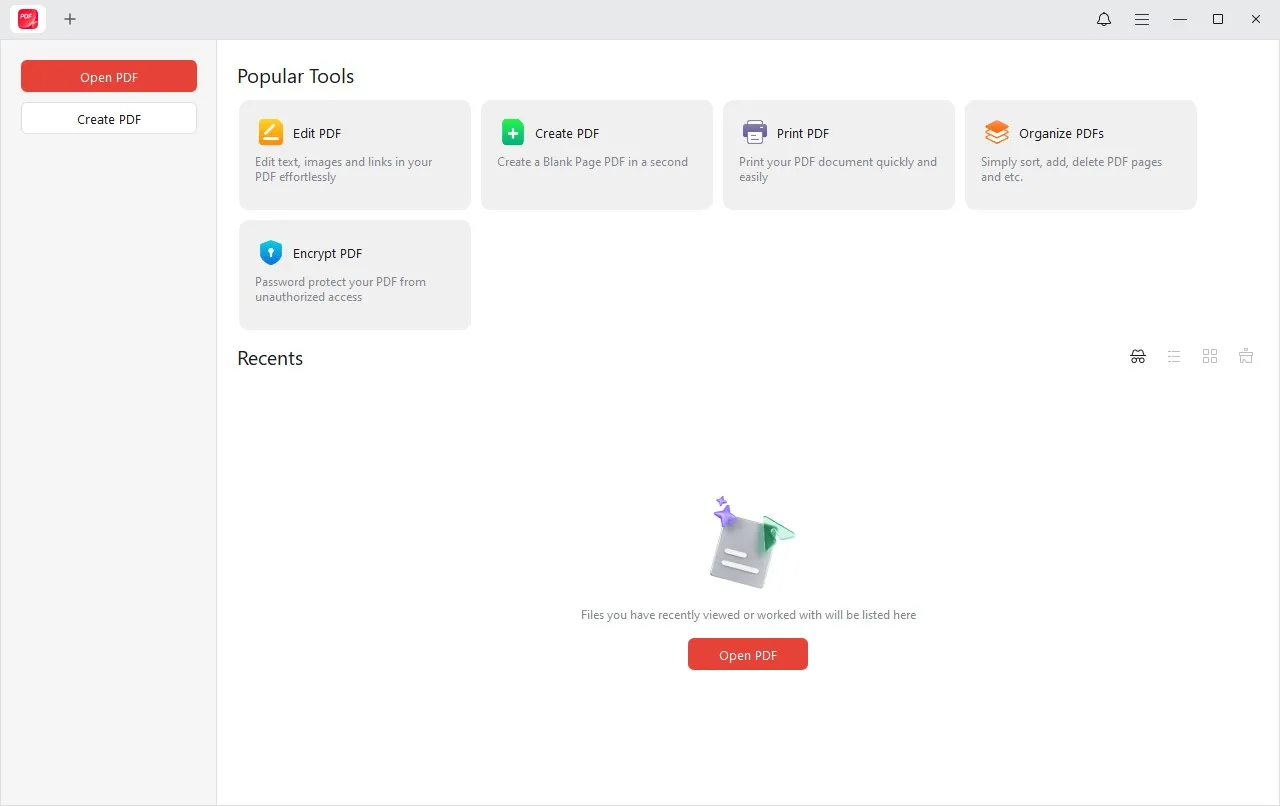
How to Encrypt a PDF Using JOPDF
Now, let’s focus on one of JOPDF’s most useful features—PDF Encryption. This feature allows you to easily password-protect files and control who can view, print, or modify them.
Please follow these simple steps:
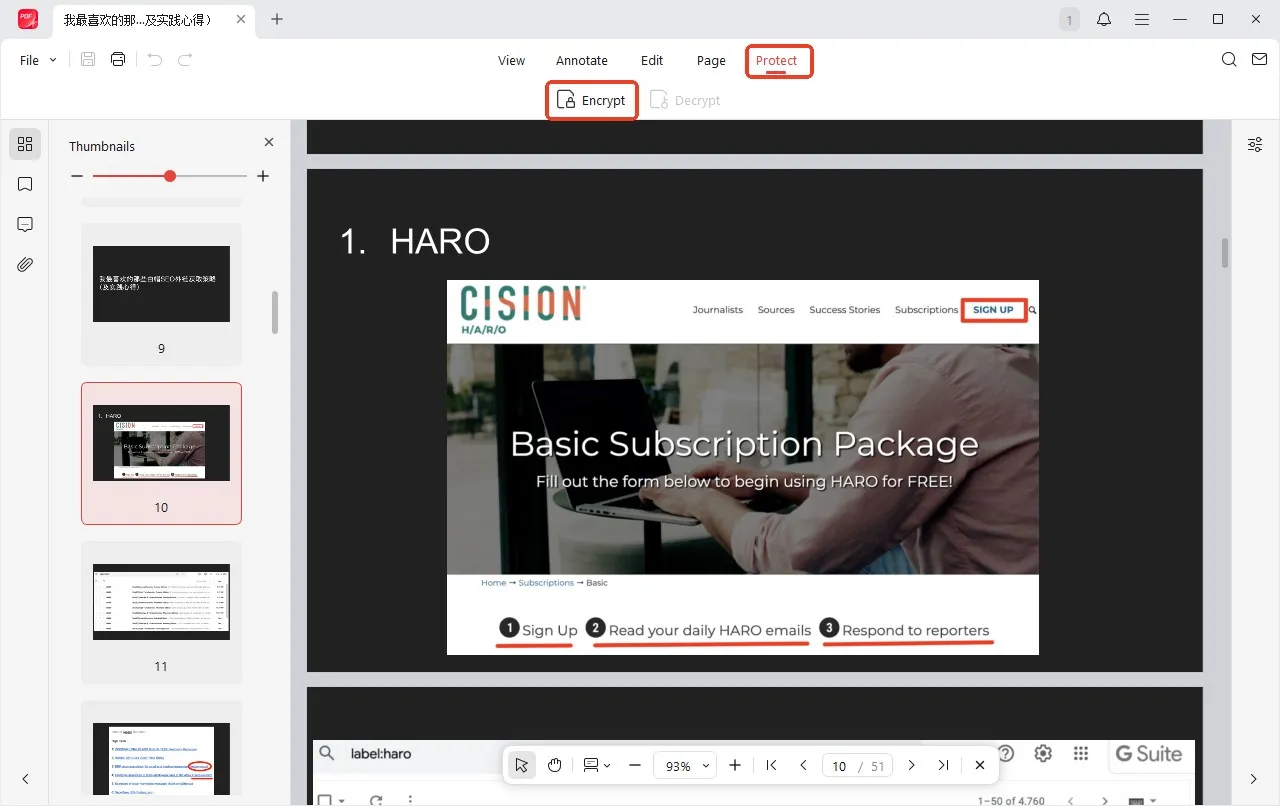
Step 1: Launch JOPDF
Open the JOPDF application on your computer. Select the PDF document you want to encrypt and click the “Protect” option. Choose” Encrypt”
Step 2: Set a Password
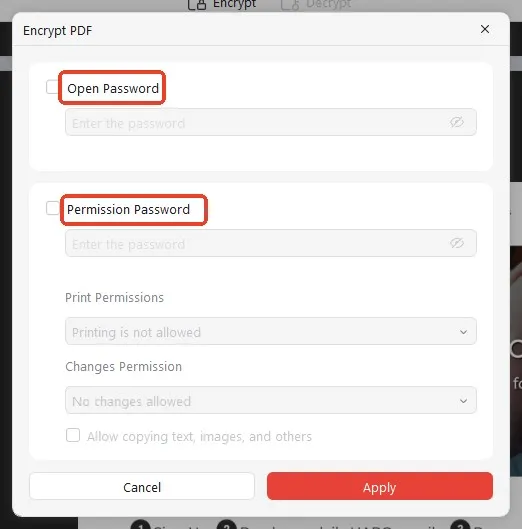
You’ll see two password settings:
- Open Password (User Password): Anyone who wants to open the PDF must enter this password.
- Permissions Password (Owner Password): This controls actions like printing, editing, or copying.
Enter your chosen password and keep it in a safe place—you’ll need it later to access or modify the document.
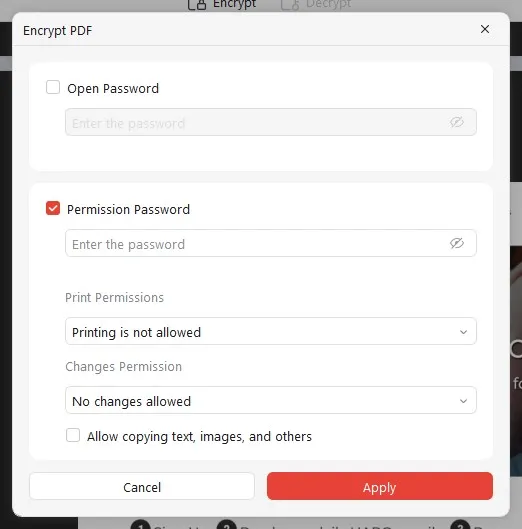
Step 3: Customize Permission Settings (Optional)
You can also choose to restrict specific actions, such as:
- Preventing others from printing your PDF.
- Disabling text or image copying.
- Blocking modifications to your file content.
Check or uncheck the appropriate boxes to customize your security level.
Step 4: Start Encryption
After setting your passwords and permissions, click the “Apply” button. Within seconds, JOPDF will secure your document and save it to your chosen output folder.
Once completed, the PDF will now require a password to open or modify, depending on your settings.
Tips for Secure PDF Management
- Always choose strong, unique passwords that combine letters, numbers, and symbols.
- Keep your passwords stored securely in a password manager.
- Regularly update your files and re-encrypt if you share them with different users.
Combine encryption with other JOPDF features, such as watermarking or signature tools, for maximum protection.
Conclusion
With cyber threats and data leaks becoming increasingly common, securing your important documents should be a top priority. JOPDF makes this task simple, fast, and effective. Its PDF encryption feature allows you to add passwords, control access, and keep sensitive information safe—all in just a few clicks.
Beyond encryption, JOPDF’s all-in-one suite of editing, conversion, and compression tools makes it an essential companion for professionals, students, and everyday users alike. If you’re looking for a secure, versatile, and easy-to-use PDF solution, JOPDF is definitely worth trying.