
Have you ever created or downloaded a PDF file and wondered, “Why is my PDF file so large?” A document that looks relatively simple on the screen can sometimes take up tens or even hundreds of megabytes. This can become a problem when you need to send the file by email, upload it to a website, store it in the cloud, or share it with other people.
The good news is that large PDF files are usually caused by identifiable elements such as high-resolution images, scanned pages, embedded fonts, complex graphics, or unnecessary document data. Once you understand what makes a PDF large, you can choose the right method to reduce PDF file size without significantly affecting its readability or appearance.
This guide explains the most common reasons why PDF files become large and provides practical solutions for making them smaller. It also introduces SwifDoo PDF as one option for compressing and managing oversized PDF documents.
Why Is My PDF File So Large?
A PDF can contain much more than visible text. Depending on how it was created, a file may include images, fonts, graphics, layers, annotations, metadata, and even multimedia content.
The most common reasons for a large PDF file include:
- High-resolution images
- Scanned documents
- Embedded fonts
- Complex graphics and vector elements
- Large or unnecessary attachments
- Layers and editing information
- Metadata, annotations, and other hidden data
Understanding which elements are responsible for the file size is the first step toward reducing it.
How to Check What Is Making Your PDF So Large
Before compressing a PDF, it is useful to identify what is actually consuming the most space.
If the PDF is mainly composed of high-resolution images, reducing image quality may provide the biggest improvement. If it is a scanned document, changing the scan resolution or image compression may be more effective.
Some professional PDF applications provide tools that analyze how much space is being used by images, fonts, attachments, and other components. This type of analysis can help you avoid unnecessary compression.
You can also make a simple comparison by checking the PDF’s properties and looking at the file size before and after removing individual elements.
How SwifDoo PDF Can Help Reduce PDF Size
SwifDoo PDF is a PDF management and editing application that includes tools for working with PDF files, including compression and document organization. Its feature set also includes PDF editing, conversion, annotation, OCR, page management, and signing.
For users who regularly work with PDFs on a desktop, having compression alongside other PDF functions can be convenient. Instead of using separate applications for editing and file-size optimization, you can manage several common PDF tasks within the same program.
A typical workflow for reducing an oversized PDF with a PDF editor such as SwifDoo PDF is:
- Open the large PDF.
- Review the document and remove unnecessary pages or content.
- Use the PDF compression function.
- Select an appropriate compression level if available.
- Save the optimized document as a new file.
- Open the compressed version and check its readability.
- Compare the new file size with the original.
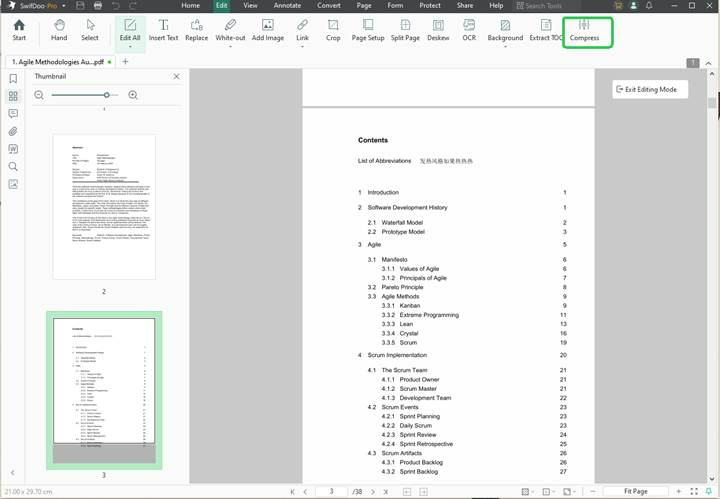
The important part is to check the result after compression. A smaller PDF is not necessarily a better PDF if important images become blurry or scanned text becomes difficult to read.
SwifDoo PDF also supports combining, splitting, and organizing PDF pages, which can be useful when reducing a large document involves more than simple compression.
How to Compress a PDF Without Losing Too Much Quality
Many people search for “compress PDF without losing quality.” In practice, completely reducing file size with zero quality change is not always possible, especially when a PDF contains high-resolution images or scans.
A better approach is to find a balance between size and quality.
For example:
- Use moderate image compression instead of maximum compression.
- Keep text-based content at its original quality.
- Avoid reducing scanned documents more than necessary.
- Review pages containing small text after compression.
- Compare the compressed file with the original before deleting the original.
If the PDF is intended for printing, choose higher-quality settings. For email, web upload, or screen viewing, more aggressive compression may be acceptable.
How to Prevent PDFs From Becoming Too Large
Preventing a large PDF is often easier than fixing one later.
When creating a new document, consider these practices:
- Resize images before inserting them.
- Avoid using unnecessarily high-resolution photos.
- Choose appropriate scanning settings.
- Use grayscale when color is not required.
- Limit unnecessary fonts.
- Remove unused pages and graphics.
- Avoid embedding unnecessary multimedia.
- Flatten unnecessary design layers.
- Use optimized PDF export settings.
- Check the final file size before sharing.
These small changes can make a significant difference, particularly for documents containing many images or scanned pages.
Final Thoughts
If you are asking, “Why is my PDF file so large?”, the answer is usually related to the content stored inside the document rather than the number of pages alone. High-resolution images, scanned pages, embedded fonts, complex graphics, layers, attachments, and hidden data can all contribute to PDF file size.
The most effective solution depends on the cause. Image-heavy PDFs may benefit most from image compression, while scanned documents may require optimized scanning settings. Design-heavy PDFs may need layer and graphic optimization, while unnecessary pages or attachments can simply be removed.
For users who frequently work with PDF documents, a dedicated PDF application such as SwifDoo PDF can provide a convenient way to combine compression with other everyday PDF tasks. The key is not simply to make a PDF as small as possible, but to find the right balance between file size, readability, image quality, and usability.